
How to buy and manage plugins
Subscribe or buy from the Plugin Marketplace, see what your package already includes, change the billing cycle, and cancel a subscription.
Your store's core operation comes with every plan; capabilities like blogging, appointments, marketplace integrations and WhatsApp are plugins. The Plugin Marketplace gathers them in one place. Two things make it easier: some plugins are already in your package and need no extra payment, and others arrive inside the All-in-One package — the marketplace labels both cases.
Antes de empezar
- A panel account that can manage plugins
- The payment method you will use for a subscription
- A decision on which capability you actually need
Pasos
Las pantallas son ilustrativas; los datos de tu panel serán distintos.
Paso 1: Open the Plugin Marketplace
The Plugins screen splits everything into categories: Content, Marketing, Operations, Productivity, Support and Integrations. The count of your active subscriptions sits at the top. If a category has nothing, the panel says so. Anything you already have is marked Subscribed or Purchased.
Plugin Marketplace
Extend your store with powerful plugins.
AllContentMarketingOperationsProductivitySupportIntegrationsBlog
Subscribed/ mo
WhatsApp
In your package/ mo
AR Studio
Buy NowOne-time
No plugins found in this category.
Plugin Marketplace — vista de ejemplo del panel Paso 2: See what you already have
A plugin marked Included in your package needs no separate purchase. If you are on the All-in-One package, plugins are marked Included via All-in-One and that card carries a Best Value badge. The panel also states what those plugins would cost If purchased separately, so you can see whether the package really is better value.
Best ValuePlugin Marketplace
All-in-One
Best ValueEverything included
Blog
IncludedIf purchased separately
Included in your package
Plugin Marketplace — vista de ejemplo del panel Paso 3: Subscribe or buy
Subscribe on a plugin lets you choose Monthly or Yearly billing; plugins sold once carry Buy Now instead. The panel tells you while the checkout is being prepared and confirms when the subscription has started. If payment fails it asks you to try again.
Subscribe to Plugin
MonthlyYearlyPreparing checkout...
Plugin subscription started successfully!
SubscribeCancelSubscribe to Plugin — vista de ejemplo del panel Paso 4: Know what a locked feature means
When you reach an area in the panel you are not subscribed to, it appears locked with a Premium badge and says the feature requires a plugin. The Subscribe to unlock link takes you straight to the right plugin — you never have to work out which one you need.
PremiumThis feature requires a plugin
Subscribe to this plugin to use this field.
This feature requires a plugin subscription
Subscribe to unlockThis feature requires a plugin — vista de ejemplo del panel Paso 5: Switch package or billing cycle
From the Current package card you can Switch package or change the billing cycle with Switch to yearly — the panel calculates what yearly billing saves you per year and notes that the new cycle starts today. If the package you are moving to contains plugins you already subscribe to individually, the panel lists them and offers Cancel them & switch.
Change Package
Change your package's billing cycle.
Current New Monthly Yearly You already subscribe to these plugins individually:
Cancel them & switchSwitch to yearlyBackChange Package — vista de ejemplo del panel Paso 6: Know what happens when a subscription lapses
A feature does not vanish the moment a subscription ends: it first drops into Read-only mode — you can see your data but not change it — and a Renew subscription link appears. Marketplace cards also show states like a grace period and Canceling, along with when the subscription ends or renews.
Read-only mode
Grace until {date}
Plugin Status Blog Renews {date} WhatsApp Ends {date} Renew subscriptionReview billingRead-only mode — vista de ejemplo del panel Paso 7: Cancel a subscription
Cancel asks you to confirm and offers Keep Subscription as well. A cancelled subscription keeps working to the end of the period, and the card says when it ends. Cancelling the whole package is a separate action — Cancel package — and it is confirmed separately too.
Cancel Subscription
Cancel package?
Yes, Cancel SubscriptionKeep SubscriptionPlugin Status AR Studio Canceling Cancel Subscription — vista de ejemplo del panel
Consejos
Check your package first
Before subscribing, look at whether the card says Included in your package or Included via All-in-One. Paying a second time for something you already have is the easiest mistake to make in the marketplace.
The yearly saving is printed on screen
When changing the billing cycle, the panel works out and shows what switching to yearly saves you per year. For plugins you have used for a long time and do not plan to drop, that calculation is usually in your favour.
Cancelling does not delete your data
When a subscription ends the feature goes read-only — your products, records and settings stay put. Subscribe again and you carry on where you left off rather than setting up from scratch.
Preguntas frecuentes
- I subscribed but the feature is still locked
- The panel confirms when a subscription has started once payment completes. If you never saw that message, the payment may have failed — the panel asks you to try again in that case. Check that the card in the marketplace now reads Subscribed.
- I get a warning when I try to switch package
- The package you are moving to also contains plugins you already subscribe to individually, and the panel lists them. Cancel them & switch ends those separate subscriptions and starts the package, so you never pay twice for the same capability.
- My subscription ended — is my data deleted?
- No. The feature goes into read-only mode: you can see your records but not edit them, and the panel offers a renewal link. If a grace period applies, the card shows that date too.
- What is the difference between one-time and subscription?
- Plugins marked One-time are bought once and carry a Buy Now button; there is no monthly or yearly renewal. Subscriptions instead let you pick Monthly or Yearly billing and renew at the end of the period.
Complementos relacionados
Esta función está incluida en todos los planes — no requiere un complemento aparte.
Pruébalo en una demo en vivo
Tiendas reales con esta función activa. Ábrelas y navega.
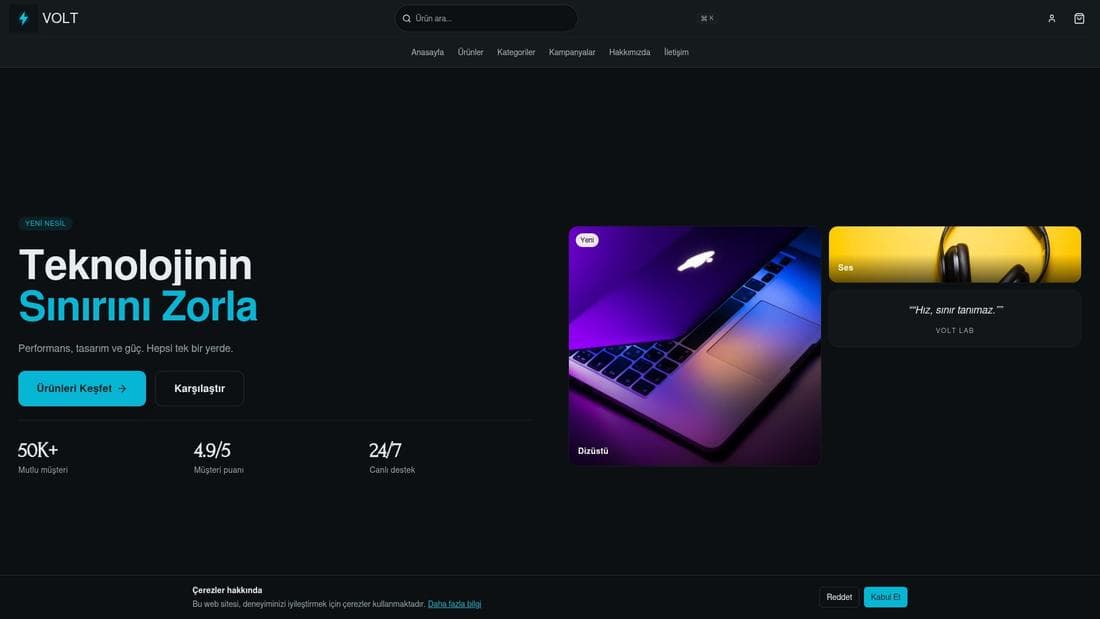
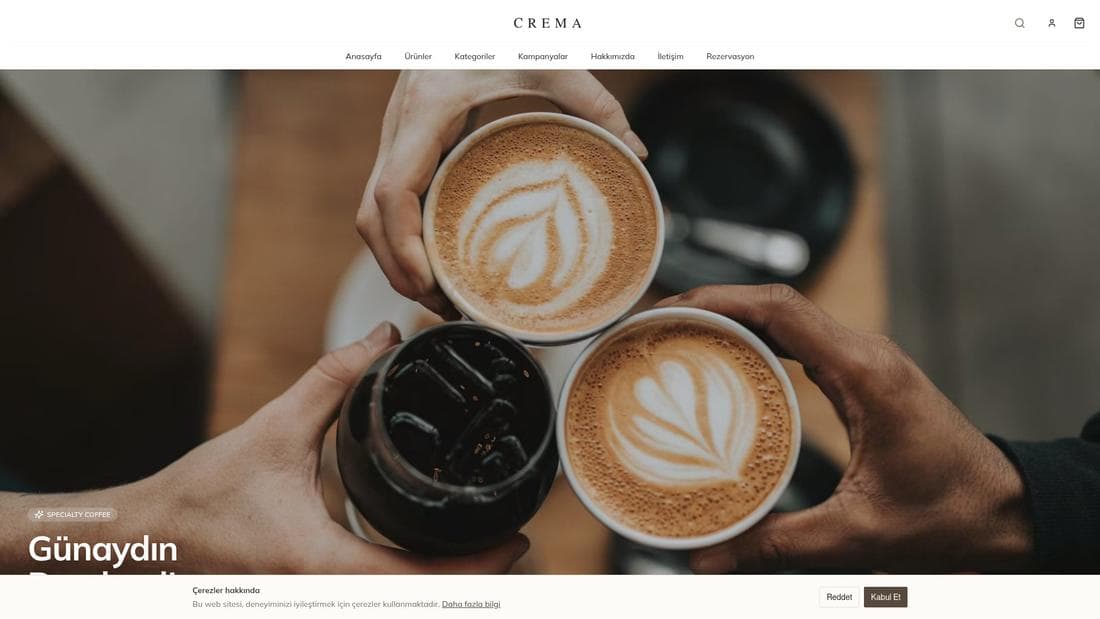
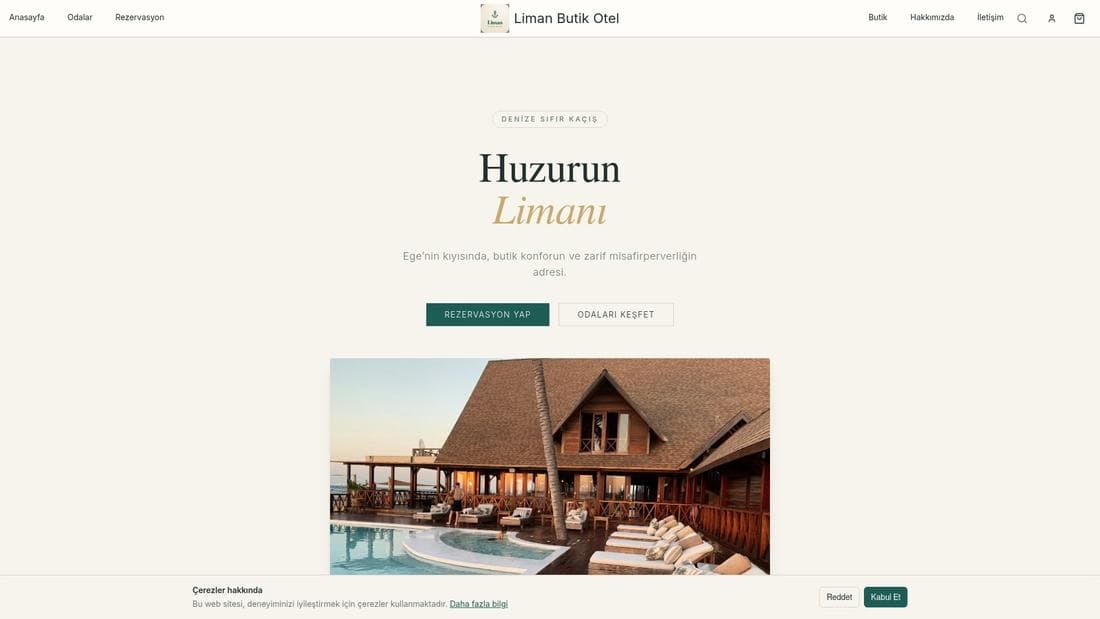
Guías relacionadas
How to open a store: 6 steps to going live
Every step from signup to launch: sector, AI-generated design, your first product, payment and delivery setup, and connecting your domain.
Adding team members and assigning roles
Invite staff into the admin panel, build roles with section-level permissions, and control exactly which screens each member can see and manage.
Using the visual page editor
Edit your store pages in the visual editor: add sections, pick a variant and style, tune the mobile layer, then save the draft and publish it.