
Online appointment system setup
Define your services and their durations, enter staff availability, set working hours, and let customers book from your site.
Online appointments are for businesses selling time: barbers, physiotherapists, dietitians, salons, vets. The setup logic is simple — define what you sell (services), who delivers it (staff) and when (availability). The calendar is computed from those three.
Antes de empezar
- The Appointments plugin enabled
- An iyzico connection if you take payment (appointments without prepayment also work)
Pasos
Las pantallas son ilustrativas; los datos de tu panel serán distintos.
Paso 1: Define your services
Add each service on Online Randevu → Hizmetler: name, duration and price. Duration is critical — calendar slot length is computed straight from it. Put 30 minutes on a 45-minute service and bookings will overlap.
Services
Service Duration Price Status Haircut 30 min ₺450 Active Beard trim 20 min ₺250 Active Cut + beard 45 min ₺620 Active New serviceServices — vista de ejemplo del panel Paso 2: Enter staff and availability
On Personel, define each person's weekly hours and which services they deliver. If nobody delivers a service, no slots open for it — the most common cause of an empty calendar.
Staff & availability
Staff Days Hours Services Ahmet Mon–Fri 10:00 – 20:00 Haircut, Beard trim Ahmet Saturday 10:00 – 18:00 Haircut, Beard trim Murat Tue–Sat 12:00 – 21:00 Cut + beard Staff & availability — vista de ejemplo del panel Paso 3: Configure appointment settings
On Ayarlar you set the minimum notice, how far ahead the calendar opens, your cancellation policy and whether bookings need approval. With approval on, bookings arrive as pending requests and are not confirmed until you accept.
Paso 4: Put the booking section on your site
Add the appointment section from the page editor. When a customer picks a service, a staff member and a time, the booking lands straight in your panel.
Paso 5: Run it from the dashboard
Online Randevu → Panel shows today's schedule, the next seven days and pending requests. On the Randevular page you switch between list and calendar views and can export to CSV.
Appointments
Today's schedule
9 appointments
Upcoming (7 days)
34 appointments
Pending requests
Awaiting approval2
This week
41 appointments
ListCalendarMonthlyAppointments — vista de ejemplo del panel
Consejos
Coupons work on appointments too
Set a coupon's applicable flow to bookings (or both) and it applies to appointment payments. 'First booking only' gives you a new-customer discount.
Empty calendar? Check availability first
If customers see no slots, check in order: is the service active, is there a staff member who delivers it, and is that person's availability defined for that day.
Preguntas frecuentes
- Can I take prepayment for a booking?
- Yes. With a payment provider connected you can charge upfront, or leave bookings unpaid.
- Can customers cancel their own appointment?
- It depends on your policy. On Ayarlar you set how many hours ahead cancellation is allowed.
- What is the difference between appointments and reservations?
- An appointment is tied to a person and a service (30 minutes at the barber). A reservation is tied to a resource (a table, a pitch, a room). If you allocate tables or pitches, look at the reservation system.
Complementos relacionados
La tarea de esta guía viene con estos complementos.
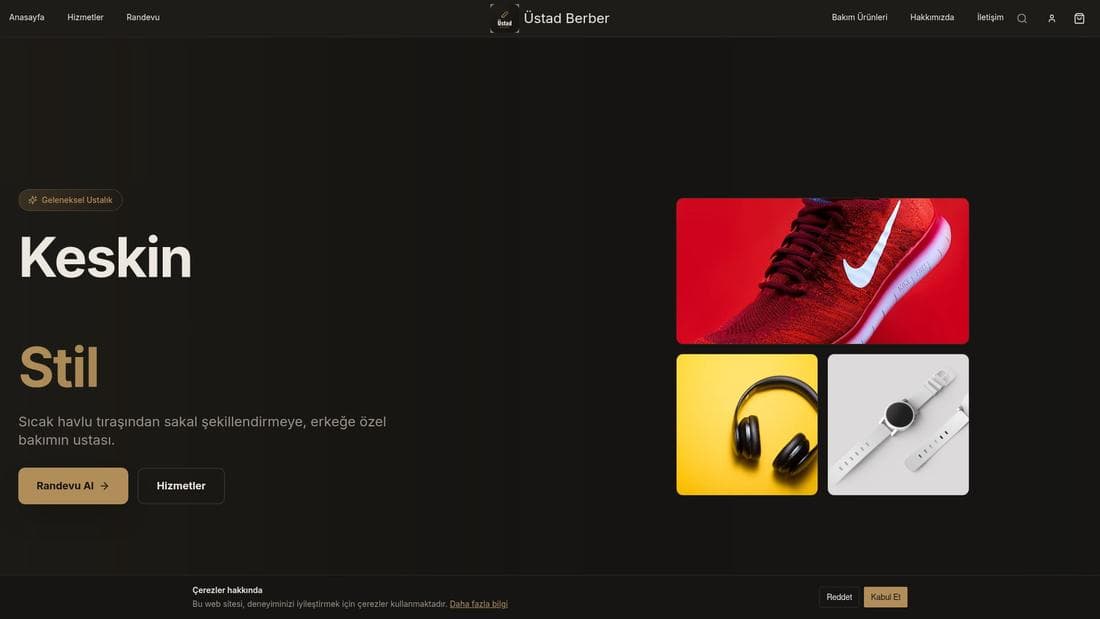
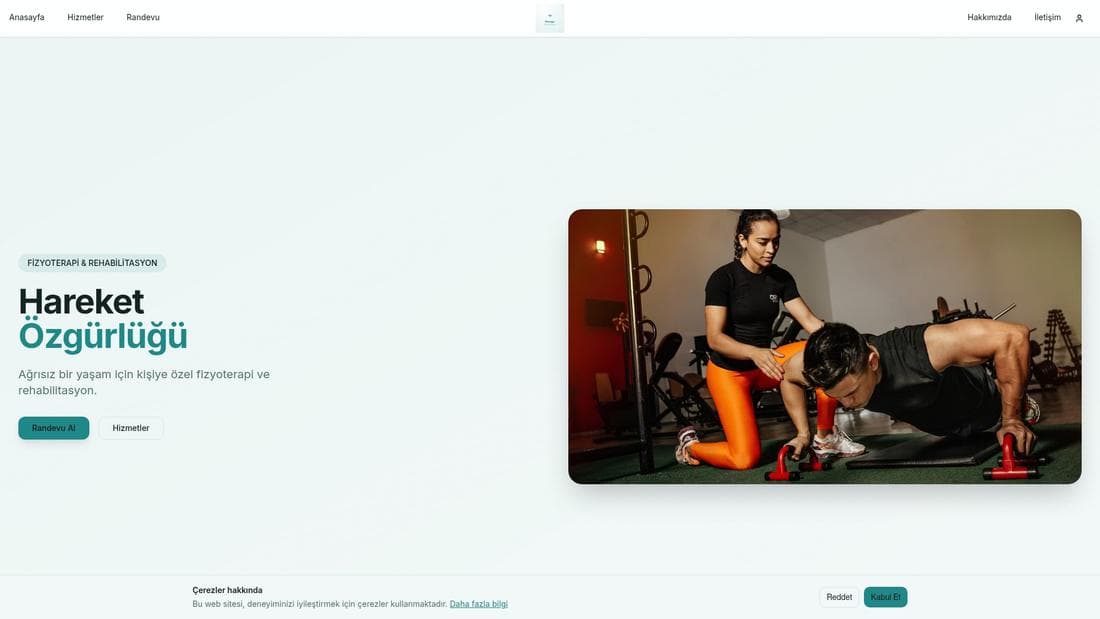
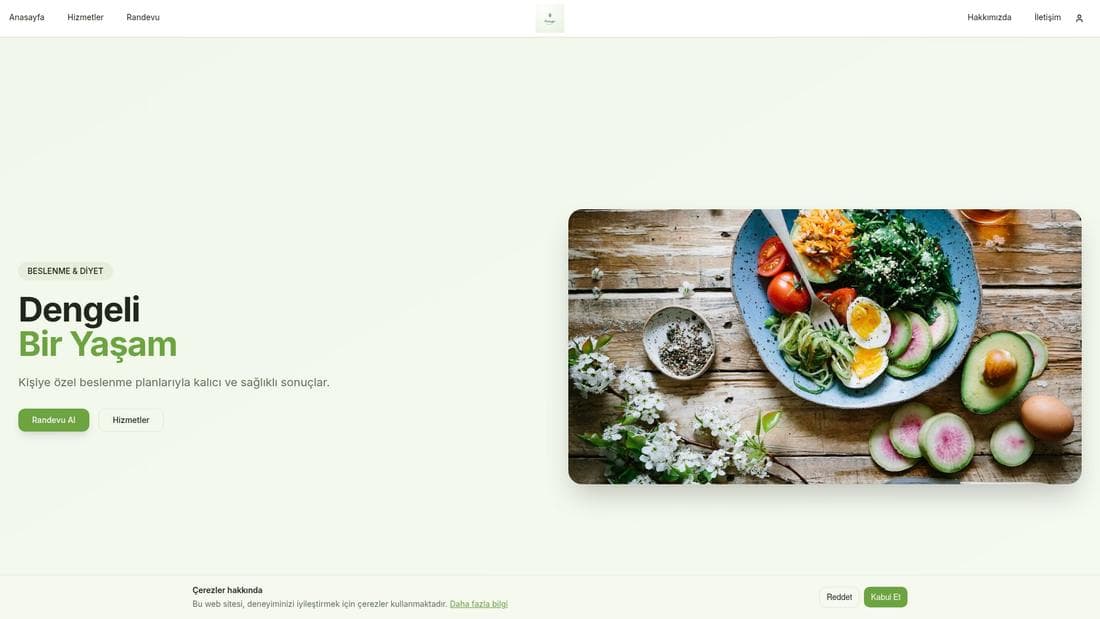
Pruébalo en una demo en vivo
Tiendas reales con esta función activa. Ábrelas y navega.
Guías relacionadas
Online reservation system setup
Define your zones and tables, draw the floor plan, enter opening hours and closures, and let customers reserve from your site.
Creating coupons and setting usage limits
Create percentage or fixed-amount discount coupons, set usage limits and date ranges, issue customer-specific codes, and announce them by SMS.