
How to manage orders in the panel
Work the order list by status tab, filter down to the order you want, print shipping labels in bulk, and enter phone orders by hand.
The order list is your daily work screen: it shows which orders are waiting on you, which are in transit and which are closed. Orders from your storefront, your till, your tables and every connected marketplace land in the same list. This guide covers reading the list, moving one order forward, and creating an order manually.
Avant de commencer
- A panel user with permission to read orders
- A shipping integration configured if you intend to print labels
- The relevant marketplace connected if you expect marketplace orders here
Étapes
Les écrans sont illustratifs ; les données de votre panneau différeront.
Étape 1: Open the order list
Siparişler → Tüm Siparişler opens with four counters — 'Bugünkü sipariş', 'İşlem bekleyen', 'Kargo sürecinde' and 'Toplam ciro'. The tabs below split orders by status and each carries its own count. Most days you start on 'Bekliyor' and 'Hazırlanıyor'.
Orders
Track and manage your orders
Orders today
18
Awaiting action
6
In transit
23
Total revenue
₺184,250
AllWaitingPreparingReady to shipIn transitDeliveredReturnsCancelledOrders — exemple de vue du panneau Étape 2: Filter down to the order you want
The search box matches order number, customer, e-mail or phone. 'Kaynak' selects where the order came from (store, till, table, marketplaces). The order-flag checkboxes — 'Planlı', 'Kısmi İşlem', 'Kuponlu', 'Faturasız' — surface lists the status tabs cannot show. Every applied filter appears as a chip under 'Aktif filtreler', and 'Filtreleri Temizle' clears them all.
Filters
SearchMH-2841SourceAll sourcesDate range01.08.2026 – 30.08.2026açıkMissing invoice
Paid and shipped or delivered, but never invoiced
kapalıPartial
Partly shipped, partly returned or partly refunded orders
Filters — exemple de vue du panneau Étape 3: Open an order and move it forward
Clicking a row opens the order. Its tabs are 'Sipariş Ürünleri', 'Kargolar' and 'İade' — the returns tab appears only when the order has one. The header actions are 'Kargo Oluştur', 'Sipariş İptal Et', 'Sipariş İade Et' and 'İade oluştur'. If you ship outside the platform you can move lines by hand with 'Kargoya Verildi Olarak İşaretle' and 'Teslim Edildi Olarak İşaretle'.
PreparingOrder details
ItemsShipmentsReturnsProduct Qty Amount Status Leather ankle boot — 41 1 ₺2,450 Preparing Suede care kit 2 ₺390 Ready to ship Create shipmentCreate returnCancel orderOrder details — exemple de vue du panneau Étape 4: Print shipping labels in bulk
Selecting several orders raises a bar at the bottom whose 'Kargo Etiketi Yazdır' button carries the selected count. The dialog lists what is included and why anything was excluded: marketplace parcels print from the marketplace's own panel, digital orders read 'Dijital sipariş · kargo etiketi gerekmez', and non-shipped sales read 'Kargo gerektirmez'. If nothing qualifies it says 'Yazdırılabilir etiket yok.'
Print shipping labels
Order / Customer Status Amount Date MH-2841 · Elif Yıldırım Ready to ship ₺2,840 29.08.2026 MH-2839 · Burak Demir Ready to ship ₺1,190 29.08.2026 MH-2836 · Selin Aksoy Ready to ship ₺760 28.08.2026 Digital order · no shipping label needed
Print shipping labelsPrint BarcodesPrint shipping labels — exemple de vue du panneau Étape 5: Enter a phone order by hand
'Yeni sipariş' in the page header records sales that arrived by WhatsApp or phone. The form runs through 'Ürünler', 'Müşteri', 'Teslimat adresi', 'Fatura adresi', 'Özet' and 'Ödeme'. Payment offers three routes: leave it unpaid, mark it paid, or create a payment link to send. Orders opened this way carry a 'Manuel' badge in the list.
ManualNew order
- 1Items
- 2Customer
- 3Shipping address
- 4Summary
- 5Payment
Search products…Search a product…Search by product or variant name; add with ↑ ↓ and Enter.
Payment methodBank transferCreate orderNew order — exemple de vue du panneau Étape 6: Use the courier and cash-on-delivery screens
Under the same menu sit 'Kurye Teslimatları' and 'Kapıda Ödeme Mutabakatı'. If you deliver with your own riders the day is run from the deliveries board, and the cash they collect is reconciled on the COD screen. Both read the same data as the order list, so an action taken on one shows up on the other.
Conseils
Partly handled orders hide inside the status tabs
An order with some lines shipped and some still waiting still sits under a single status tab. Unless you review the 'Kısmi İşlem' flag regularly, half-finished parcels go unnoticed for weeks.
Run the missing-invoice filter weekly
'Faturasız' lists orders that were paid and dispatched but never invoiced. Checking it weekly rather than at month end catches a stalled e-invoice provider or an exhausted quota while the backlog is still small.
Questions fréquentes
- Do marketplace orders appear in this list?
- Yes. Orders from every connected marketplace land in the same list and can be separated with the 'Kaynak' filter. Their labels, however, are printed from the marketplace's own panel, which is why the bulk label dialog excludes them.
- What is the difference between cancelling and refunding an order?
- Cancelling closes an order that has not shipped. Refunding starts the money going back to the customer and manages the goods coming back; if the customer opened the request themselves, the work happens on the returns tab.
- The list looks empty — where are my orders?
- Almost always a filter left on. If the page reads 'Bu filtrelerle eşleşen sipariş yok', check the 'Aktif filtreler' row and press 'Filtreleri Temizle'; the counts next to each tab also tell you how many orders sit in each status.
Extensions associées
Cette fonctionnalité est incluse dans toutes les formules — aucune extension séparée.
Essayez dans une démo en ligne
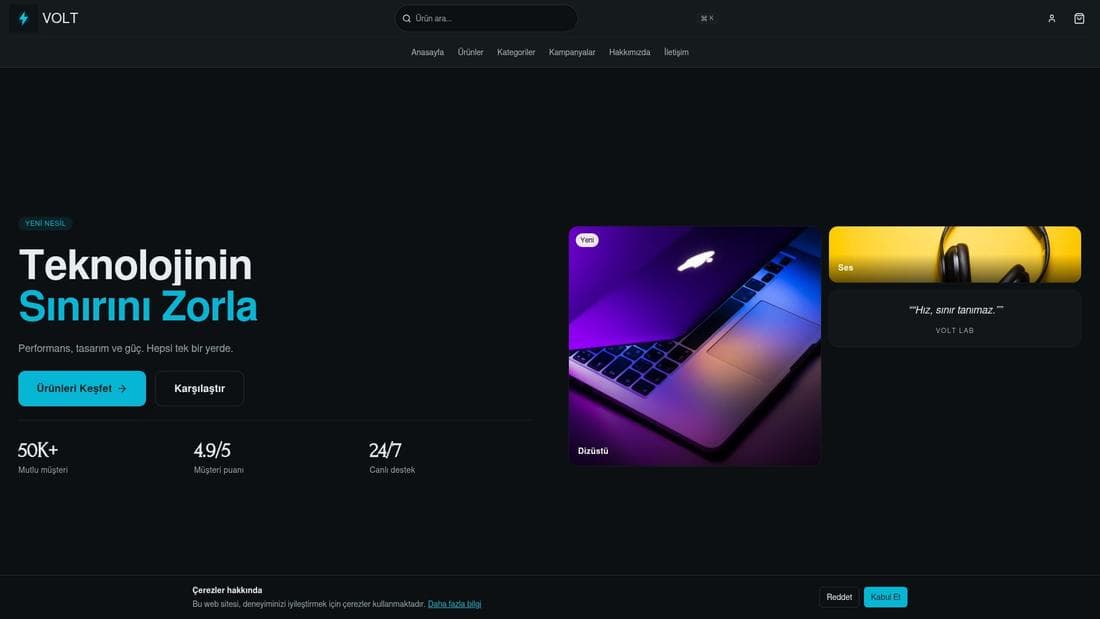
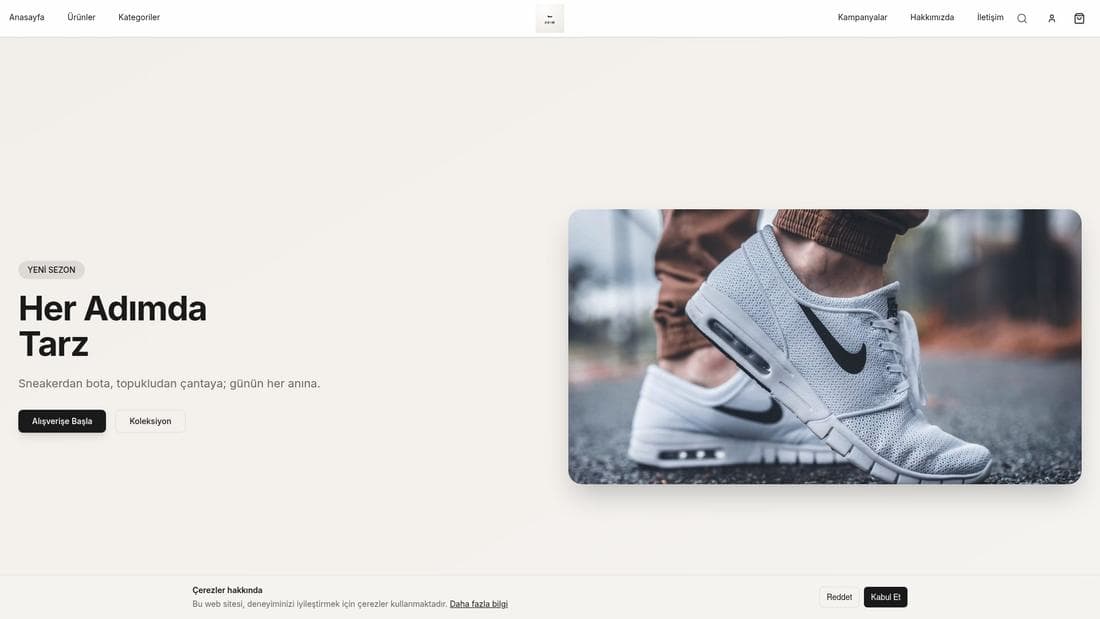
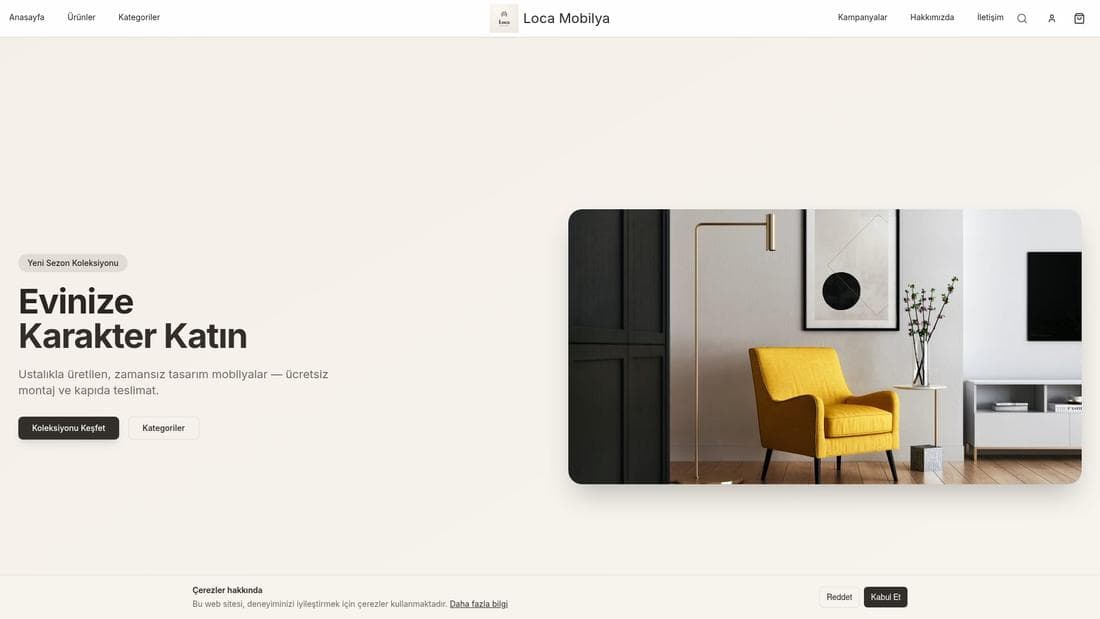
De vraies boutiques utilisant cette fonctionnalité. Ouvrez-les et explorez.
Guides associés
Approving and resolving return requests
Set your return policy, find incoming requests on the order list's returns tab, inspect the goods line by line, then refund the money or open an exchange.
Shipping integration (Geliver) setup
Connect Geliver to generate shipping labels automatically, define the shipping options and prices shown at checkout, and track shipments.