
Newsletter subscribers and sending
See who is subscribed to your newsletter, compose an HTML issue, send yourself a test, and deliver it to every subscriber now or on a schedule.
The newsletter is the bulk announcement you send to customers who have agreed to receive marketing email — a new collection, a seasonal campaign, a blog post. The subscriber list fills itself: customers who sign up through the newsletter block on your storefront and switch marketing on land here. In the panel you do two things: see who has subscribed, and write and send content to that list.
Before you start
- The newsletter plugin enabled on your store
- At least one newsletter subscriber
- An SMTP configuration, so mail leaves from your own domain
Steps
Screens are illustrative; the data in your own panel will differ.
Step 1: Open the subscriber list
E-posta → Bülten lists the customers who have consented to marketing email. The total subscriber count sits at the top, and each row carries an 'Abone' or 'Abonelik İptal' status pill. The filter defaults to 'Sadece Aboneler' — switch to 'Tümünü Göster' to see people who have left.
Total subscribers: 1,284Newsletter subscribers
Customers who have consented to receive marketing email
StatusSubscribed onlyStatus Subscriber Subscribed Unsubscribed Subscribed Selin Aydın · selin@ornek.com 12.06.2026 — Subscribed Kerem Doğan · kerem@ornek.com 03.07.2026 — Unsubscribed Ayşe Tunç · ayse@ornek.com 19.02.2026 24.08.2026 Newsletter subscribers — example view from the panel Step 2: Put a sign-up block on the storefront
If the list is empty, customers first need somewhere to subscribe. Open the page editor under İçerik > Sayfalar and add the newsletter block, then write your own heading and description into its fields. The footer carries the same block — there you only need to switch 'Bülteni Göster' on.
Newsletter
Email newsletter subscription
Newsletter TitleSubscribe to our newsletterNewsletter DescriptionSubscribe for exclusive offers, new arrivals and more!açıkShow Newsletter
Newsletter — example view from the panel Step 3: Write the issue
The 'Mail Gönder' button above the subscriber list opens the composer. Put the inbox line in the subject field and the body in the HTML content field. The personalisation panel on the right inserts {{firstname}}, {{lastname}}, {{email}} and {{store_name}} at the cursor in one click. If you would rather not start from a blank page, 'AI ile Oluştur' drafts one for you.
DraftNew newsletter
SubjectThe autumn collection is live todayEmail Body (HTML)<h1>Hello {{firstname}},</h1><p>The new season is up at {{store_name}}…</p>{{firstname}}
Selin
{{lastname}}
Aydın
{{store_name}}
Sayfa Kitabevi
Generate with AISave DraftNew newsletter — example view from the panel Step 4: Preview it and send yourself a test
Switch between the editor and preview tabs to see how the body renders as a real email. Then press 'Test Gönder' and enter your own address: a preview of the message goes to that single address before you publish. Check here that the variables resolve and the links work — after it reaches a thousand inboxes there is no correcting it.
Send a test email
EditorPreviewSend a preview of this email to a specific address before publishing.
Email addressme@sayfakitabevi.comSend testSend a test email — example view from the panel Step 5: Send now or schedule it
When you are ready, press 'Şimdi Gönder'; the confirmation dialog states how many subscribers it will reach. To send later, switch on 'Sonraya zamanla', fill in the send date and time and press 'Zamanla' — times are shown in your local time zone and the moment you pick must be in the future. An issue moves through draft, scheduled, sending and sent.
ScheduledSend newsletter
açıkSchedule for later
Send date & time02.09.2026 10:00Times are shown in your local time zone.
This will be sent to 1,284 subscribers.
ScheduleSend nowSend newsletter — example view from the panel Step 6: Check the channel in the notification settings
Bildirim Ayarları decides which channel reaches customers for each notification type; the newsletter row in the marketing group must have its email channel on. The consent-prompt option on the same page shows a one-time permission question to logged-in customers who have never stated a marketing preference, and records those who accept as explicit consent — the cleanest way to grow the list.
Notification settings
Notification Email App notification SMS WhatsApp Newsletter On Off Not available Not available Promotions On On Off Off açıkAsk customers for consent
SaveNotification settings — example view from the panel
Tips
The list looks shorter than it is by default
The filter opens on 'Sadece Aboneler', so people who unsubscribed never appear and the total will not match the visible rows. Switch to 'Tümünü Göster' to measure churn — and never re-add someone who left by hand; they must opt in again themselves.
Saving a draft is not sending
'Taslak Kaydet' stores the issue but delivers nothing; drafts are reopened from the drafts panel. The only proof an issue actually went out is its status reading sent — scheduled still means waiting.
Frequently asked questions
- Can I see how many people it will reach before sending?
- Yes. The confirmation dialog that appears when you press send or schedule states the recipient count. If you have no subscribers at all, the same dialog says so and nothing is sent.
- Does it go to customers who unsubscribed?
- No. The newsletter only goes to records in the subscribed state. Unsubscribed customers are excluded from the recipient count and are shown in the list with their unsubscribe date.
- The AI generate button is locked. Why?
- That feature belongs to a separate plugin, and while it is locked the panel says the AI features plugin is required. You can still write the issue by hand; only the draft generation is unavailable.
Related plugins
The task in this guide ships with these plugins.
Try it in a live demo
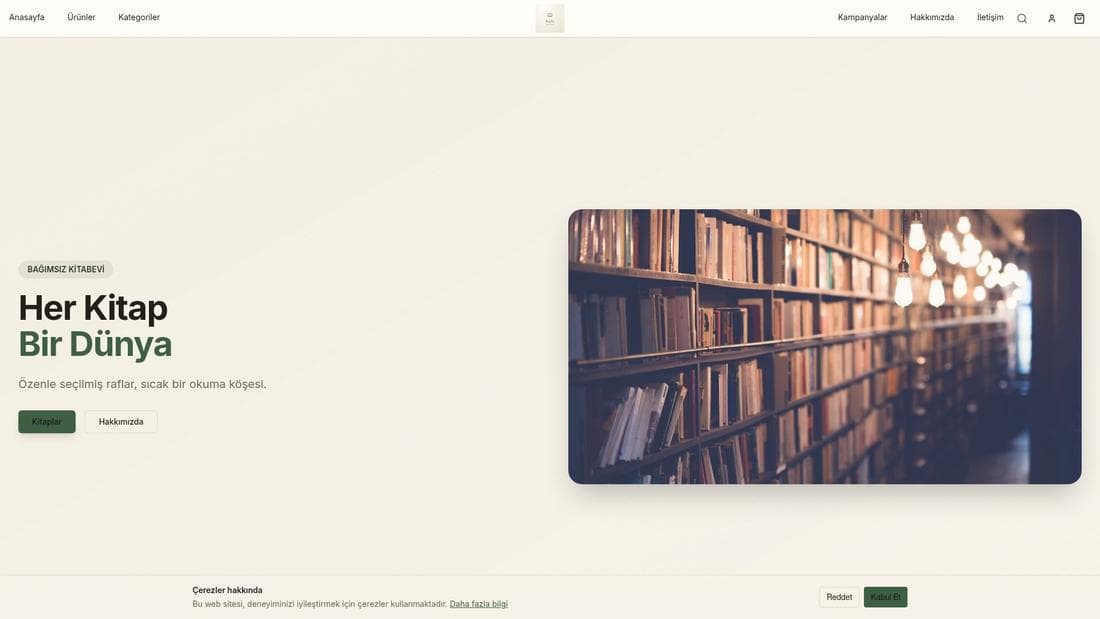
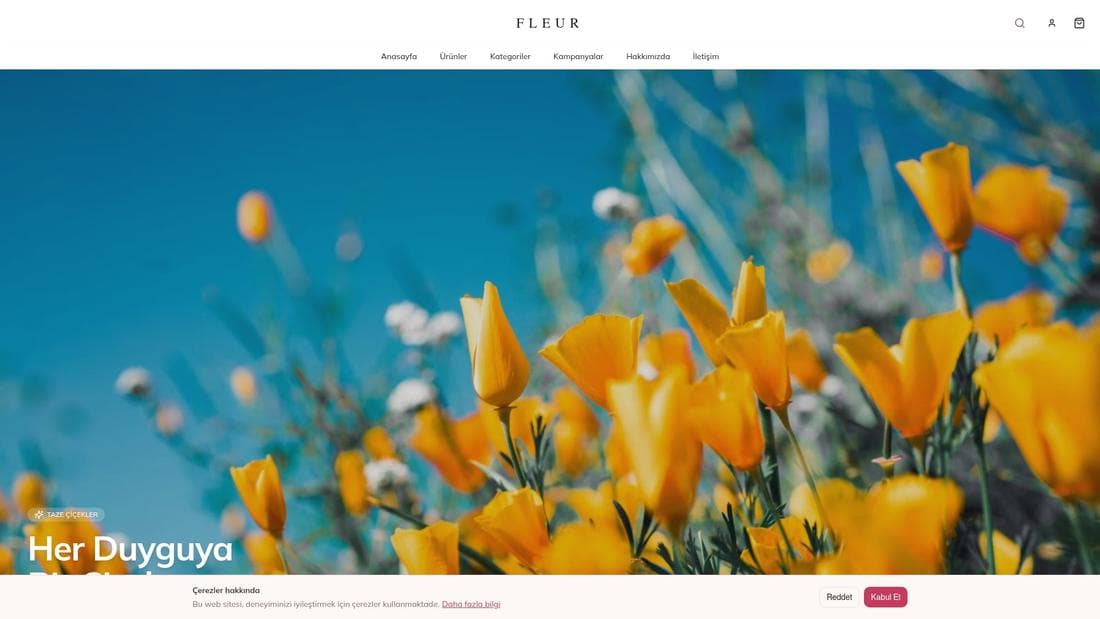
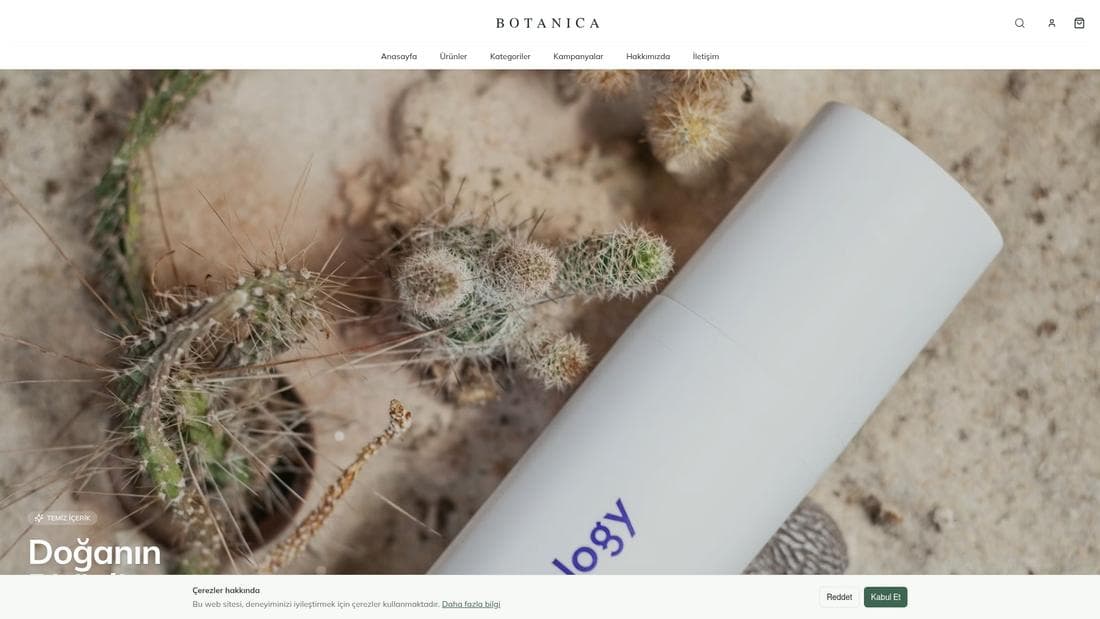
Real stores running this feature. Open one and click around.
Related guides
Editing your email templates
Customise the subject line and HTML body of your order, shipping, refund and account emails, preview the result and reset any template to default.
Creating coupons and setting usage limits
Create percentage or fixed-amount discount coupons, set usage limits and date ranges, issue customer-specific codes, and announce them by SMS.