
Editing your email templates
Customise the subject line and HTML body of your order, shipping, refund and account emails, preview the result and reset any template to default.
Your store sends an automatic email for every order, cancellation, refund, password reset and stock alert. All of them are editable templates: you can rewrite the subject line and the HTML body in your own brand voice, and drop in variables for the customer name, order code or total. Any template you never touch keeps running on the system default, so no email is ever left unsent.
Avant de commencer
- The Custom Email Templates plugin enabled on your store
- Optional: the Business Email plugin, if you want business addresses such as info@ on your own domain
- Basic HTML, if you intend to edit the body by hand
Étapes
Les écrans sont illustratifs ; les données de votre panneau différeront.
Étape 1: Open the template list
E-posta → Templates lists every template grouped by subject: orders, cancellations and refunds, shipping, notifications, account, contact, blog, system and other. Each row carries an 'Özelleştirilmiş' or 'Varsayılan' badge, so you can see at a glance which ones have been touched. Use the search box on a long list.
Email templates
Customise the emails sent to your customers and to your administrators.
Template Type Subject Last updated Order received Your order — {{order_code}} 27.08.2026 Customised Shipped Your order is on its way — Default Cart reminder You left items in your basket 22.08.2026 Customised Welcome Welcome aboard — Default Email templates — exemple de vue du panneau Étape 2: Open a template and write the subject line
Press 'Düzenle' on a row to open the editor. The subject line is the only thing visible in the inbox, so keep it short and use variables — a field like {{order_code}} works in the subject too. The available-variables list on the right shows a sample for each one; click a variable to insert it at the cursor.
Order ReceivedEdit template
Subject Line{{store_name}} — we have received order {{order_code}}{{customer_name}}
Selin Aydın
{{order_code}}
MH-24187
{{order_total}}
₺1,240.00
Click to insert
Edit template — exemple de vue du panneau Étape 3: Edit the HTML body
The HTML template field is the body of the email. Watch two variable kinds: array variables are looped with {{#each}}, and HTML variables need triple braces, {{{...}}}. Write an HTML variable with double braces and the customer sees raw tags in the message. The 'Biçimlendir' button tidies up messy indentation.
HTML template
<h1>Hello {{customer_name}},</h1>
<p>We have received order {{order_code}}.</p>
{{#each items}}
  <li>{{this.name}} — {{this.price}}</li>
{{/each}}
{{{invoice_table}}}
HTML variable — uses triple braces {{{...}}}
FormatHTML template — exemple de vue du panneau Étape 4: Preview and save
The preview tab renders the template at full size with sample data; press 'Önizlemeyi Yenile' after changing the body. When you are happy, press 'Değişiklikleri Kaydet'. From the moment you see the saved confirmation, every email of that type goes out with the new copy — there is no separate publish step.
Preview
HTML TemplatePreviewRefresh PreviewReset to defaultSave changesTemplate saved successfully
Preview — exemple de vue du panneau Étape 5: Set the schedule for reminder emails
Templates such as the cart reminder and the review reminder carry an extra scheduling card. 'Aralık Ekle' sets how many days after the triggering event a reminder goes out — 1 day, 3 days and 1 week are presets, and a custom option takes your own number of days. You can also restrict which weekdays it runs on.
Reminder schedule
Set when reminder emails go out after the triggering event.
Gap Days After 1 day All days After 3 days All days After 1 week Every Monday Add IntervalReminder schedule — exemple de vue du panneau Étape 6: Open a business email address and verify DNS
This step is optional and needs the Business Email plugin. On E-posta → Kurumsal E-posta, 'Yeni Mail Adresi Oluştur' creates an address on your own domain from a sender name, an email prefix and the domain. Your store's automatic template emails are not sent from these addresses; they are for your own correspondence. Once it exists, add the MX, SPF, DKIM and DMARC records from the DNS card to your domain's DNS, then press 'DNS Kayıtlarını Doğrula'. Every record left marked as not found costs you deliverability.
DNS records
Type Purpose State MX Routes incoming mail to the mail server Verified SPF Declares which servers may send on your behalf Verified DKIM Cryptographic signature proving the mail is genuine Not found DMARC Policy for unauthenticated mail Verified Verify DNS RecordsDNS records — exemple de vue du panneau Étape 7: Watch delivery in the mail log
E-posta → Mail Kayıtları lists every outgoing message with recipient, subject and status. If a row reads failed, the detail view names the error and shows how many attempts were made. Once you have fixed the cause, 'Maili Yeniden Gönder' sends that same email again.
Mails
Date Recipient Subject Status 29.08.2026 14:12 selin@ornek.com Your order was received Sent 29.08.2026 13:47 kerem@ornek.com Your order is on its way Sent 29.08.2026 11:05 ayse@ornek.com Password reset Failed Resend MailMails — exemple de vue du panneau
Conseils
Reset to default cannot be undone
It returns the template to the original default and every customisation is lost, with no undo. Before starting a large edit, copy the HTML body out and keep it on your own machine.
Editing a template does not decide whether the mail is sent
Whether a customer receives an email depends on the channel matrix in Bildirim Ayarları and on the customer's own preference. The template only supplies the copy — if the email channel is off for that notification type, no amount of editing will make one arrive.
Questions fréquentes
- What happens if I never edit a template?
- It stays marked as default in the list and keeps sending with the system's ready-made copy. No email is skipped because it was never edited; customisation is entirely optional.
- Emails from my business address land in spam. What should I do?
- It is usually a missing DNS record. For addresses opened with the Business Email plugin, SPF and DKIM in particular must show as verified on the Kurumsal E-posta page; create any record that shows as not found in your domain's DNS panel and press 'DNS Kayıtlarını Doğrula' again. Your store's automatic template emails are not sent from these addresses, so these records do not change their delivery.
- My edited template looks broken — how do I roll it back?
- Use 'Varsayılana Sıfırla' in the editor to return to the original. Your customisations are deleted, but the template works again and you can start the edit over.
Extensions associées
La tâche décrite ici est fournie avec ces extensions.
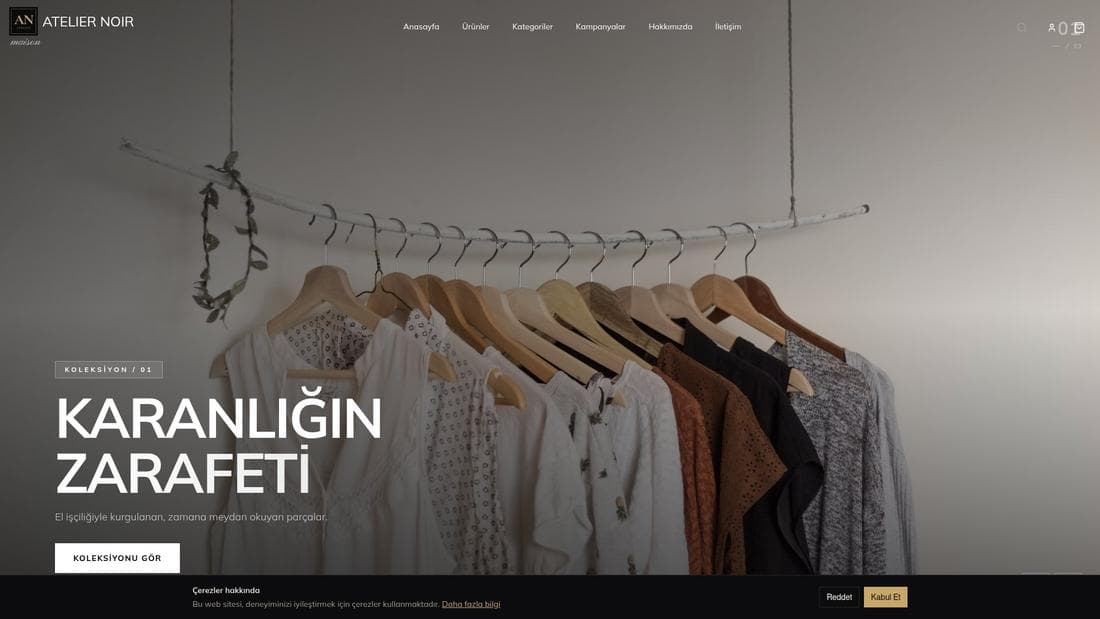
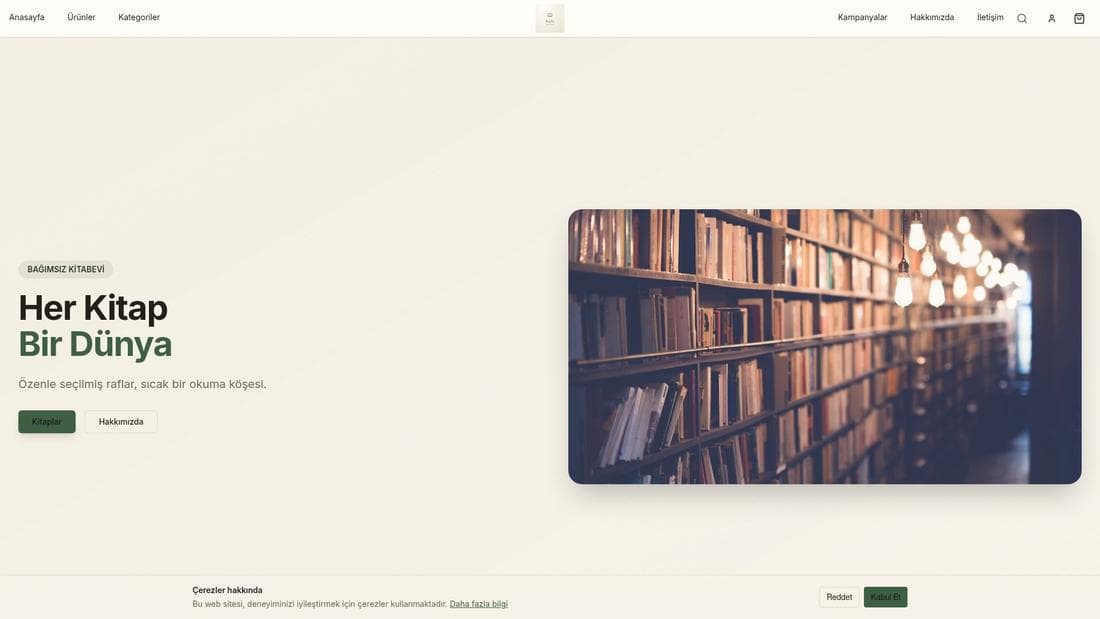
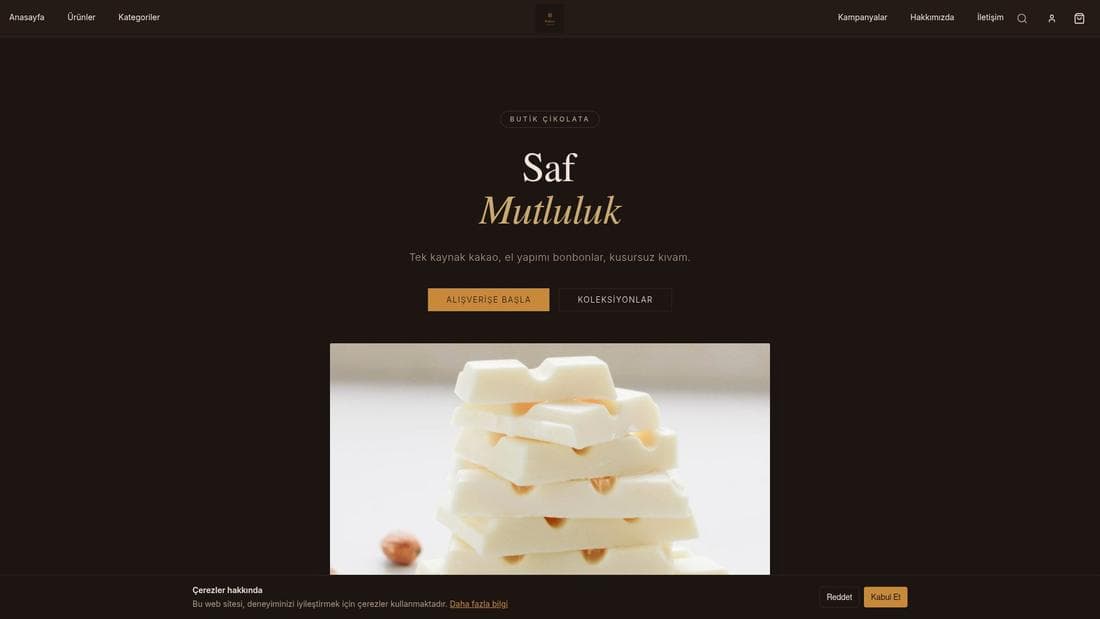
Essayez dans une démo en ligne
De vraies boutiques utilisant cette fonctionnalité. Ouvrez-les et explorez.
Guides associés
Newsletter subscribers and sending
See who is subscribed to your newsletter, compose an HTML issue, send yourself a test, and deliver it to every subscriber now or on a schedule.
Setting up WhatsApp notifications
Connect your WhatsApp Business account, switch on order and shipping notifications, and register your Meta-approved message templates.