
How to set up dealer and wholesale pricing
Create a customer group, give it a discount, build a quantity-tiered price list, and show prices only to signed-in dealers.
Selling the same product to a retail customer at one price and to your dealer at another does not need a second store. The B2B / Dealers screen has three parts: customer groups (who), price lists (how much) and settings (who may see prices at all). The moment a customer is in a group they see their own prices when they visit the store, and no other visitor can see those prices.
Before you start
- A panel account with permission to manage customers and pricing
- The discount rate or the quantity tiers you want to give dealers
- The customers you will treat as dealers already registered in the store
Steps
Screens are illustrative; the data in your own panel will differ.
Step 1: Create the customer group
Open Customers > B2B / Dealers and, on the Customer Groups tab, click New Group. Group Name and Slug are required; the slug may contain only lowercase letters, digits and dashes. Group Discount (%) comes off the retail price — but a price list always wins over it, so the blanket discount only applies to products that are not on a list.
B2B / DealersNew Group
Customer GroupsPrice ListsSettingsGroup NameDealerSlugdealerLowercase letters, digits and dashes only.
Group Discount (%)20Off the retail price. A price list always wins over this.
açıkDealer group
SaveNew Group — example view from the panel Step 2: Set the group's rules
Three more settings sit on the same form. Show prices excluding VAT makes members see net prices in the store. Minimum Order Value sets a floor; leave it at 0 for no minimum. Under Payment Method Restriction, leave everything unchecked for no restriction — the moment you check one, the group can only pay with the checked methods.
New Group
açıkShow prices excluding VAT
Minimum Order Value5,000Leave at 0 for no minimum.
Leave all unchecked for no restriction. Once you select any, this group can only pay with the checked methods.
açıkOpen account
açıkCredit card
kapalıWallet
New Group — example view from the panel Step 3: Add customers to the group
Open the group and, under Group members, click Add customers, then find people with the Search by name, e-mail or phone… box. Everything you pick is assigned in one go. If a customer you selected is already in another group the panel warns you: saving MOVES them to the new group and they lose the previous group's prices.
Add customers
Search by name, e-mail or phone…smithGroup Type Discount Min. order Dealer Dealer 20% 5,000 Default Retail — — 2 of these customers are currently in another group. Saving MOVES them to Dealer and they lose the previous group's prices.
Add customers — example view from the panel Step 4: Build a quantity-tiered price list
On the Price Lists tab click New Price List, attach it to a Customer Group and give it a Valid from / Valid to date — leave the end empty and the list shows as No end date. Then use Add product to pick the product and Add tier to enter the quantity steps. The more of the same product a customer buys, the lower the unit price; whichever tier the ordered quantity reaches is the unit price applied.
2026 Dealer ListPrice Rows
Customer GroupDealerList Name2026 Dealer ListQuantity range Unit price Discount (%) vs retail 1–4 units 100.00 ₺ 0 — 5–9 units 95.00 ₺ 5 5% 10 and up 90.00 ₺ 10 10% Add tierSave this productPrice Rows — example view from the panel Step 5: Know which Save you are pressing
There are two saves here and they do different things. Save this product on a product's card updates only that product's tiers and leaves the rest of the list untouched. Save rows at the top REPLACES the list with exactly the rows on screen — anything you removed is deleted from the list. If you are correcting one price, the button on that product's own card is the one you want.
Price Rows
Saving REPLACES the list with exactly these rows — anything you remove is deleted from the list.
Edit each product separately with “Edit” on its own card; saving updates only that product's tiers and leaves the rest of the list untouched.
Save RowsSave this productPrice Rows — example view from the panel Step 6: Import a long list from Excel
Rather than typing hundreds of rows, use Import (Excel/CSV). The file's columns must be code, min_qty, price; a barcode or a product code is accepted as the code. Imported rows are appended to the sheet on screen and nothing is written until you Save — so if you picked the wrong file, leaving the page is enough. Codes that do not match are reported with a count and are not added.
Import (Excel/CSV)
Columns: code, min_qty, price. Barcode or product code accepted; rows are appended to the sheet and nothing is written until you Save.
code;min_qty;price
8690001234567;1;100
8690001234567;5;95
8690001234567;10;90
3 codes did not match and were not added
Import (Excel/CSV) — example view from the panel Step 7: Hide prices from your competitors
The Show prices to dealers only switch on the Settings tab lets you keep the catalogue public without publishing your wholesale price list. When it is on, visitors without a dealer account see no prices and no add-to-basket — just a dealer sign-in link. The panel states which mode you are in on a single line underneath.
Settings
Customer GroupsPrice ListsSettingsaçıkShow prices to dealers only
Now: prices are visible to signed-in dealers only.
Settings — example view from the panel
Tips
The default group covers everyone
Mark a group as the Default group and EVERY registered customer with no explicit group automatically gets that group's pricing. The member list shows only the people you added by hand, but the pricing applies to all of them — bear that in mind when setting the default group's discount.
A tier beats the group discount
If a product is on a price list, the group's blanket discount is not applied to it. Give a dealer both a 20% group discount and a tiered list, and only the tier price is in force for the products on that list.
The panel flags a tier above retail
If a tier ends up above the retail price the panel warns on that row. It usually means a shifted price column in an imported spreadsheet; fix the flagged row before saving.
Frequently asked questions
- Does removing a customer from a group delete their account?
- No. The customer keeps their account, orders and addresses; only the pricing membership changes back to retail. The same is true if you delete the whole group — members keep their accounts and revert to retail pricing.
- Can I force my dealers onto a particular payment method?
- Yes. Check the methods under Payment Method Restriction on the group form and the group can only pay with those. Check only Open account, for example, and dealers cannot pay by card — their orders go onto their account instead. Leave everything unchecked and no restriction applies.
- I set dates on a price list but prices did not change
- Check the list's status: Scheduled means the start date has not arrived, Expired means the end date has passed. Only an Active list applies prices. Leave the end date empty and the list shows as No end date.
- Can Google or my competitors see my dealer prices?
- With Show prices to dealers only turned off, yes — prices are public. Turn it on and nobody who is not signed in sees a price or an add-to-basket button; they get a dealer sign-in link instead. Your catalogue stays published, your price list does not.
Related plugins
The task in this guide ships with these plugins.
This plugin is switched on from the Plugins screen in your store panel; it has no separate landing page on this site.
Try it in a live demo
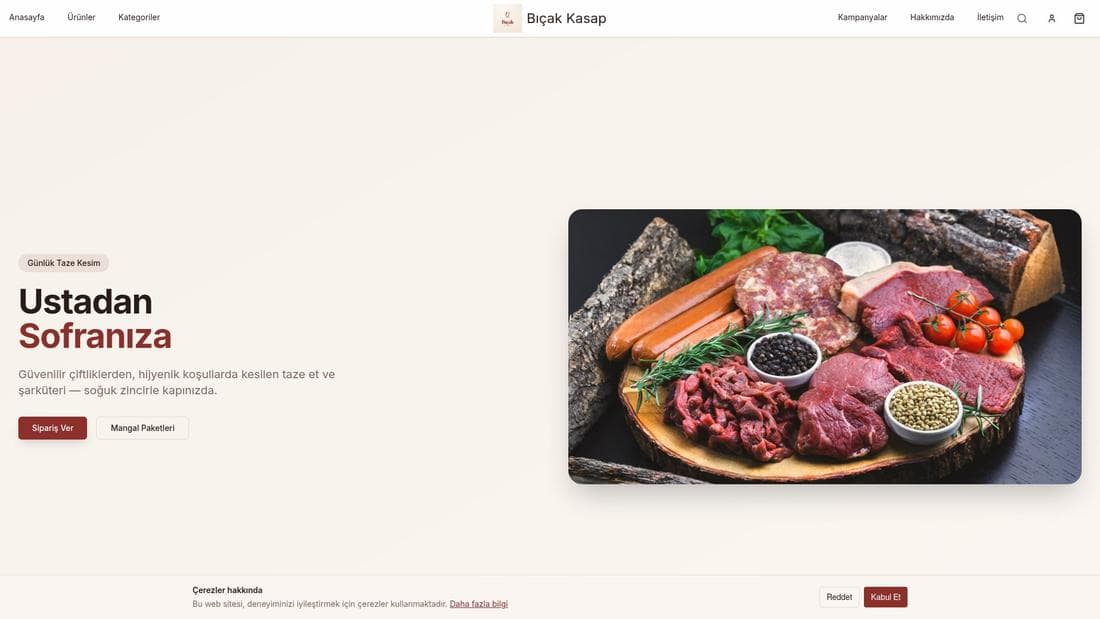
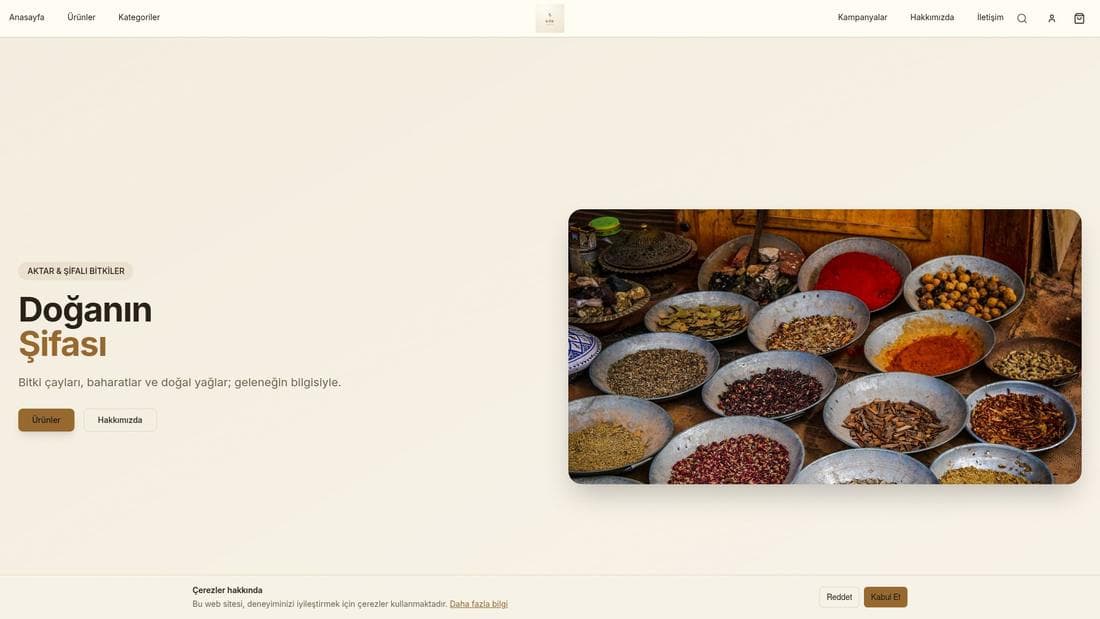
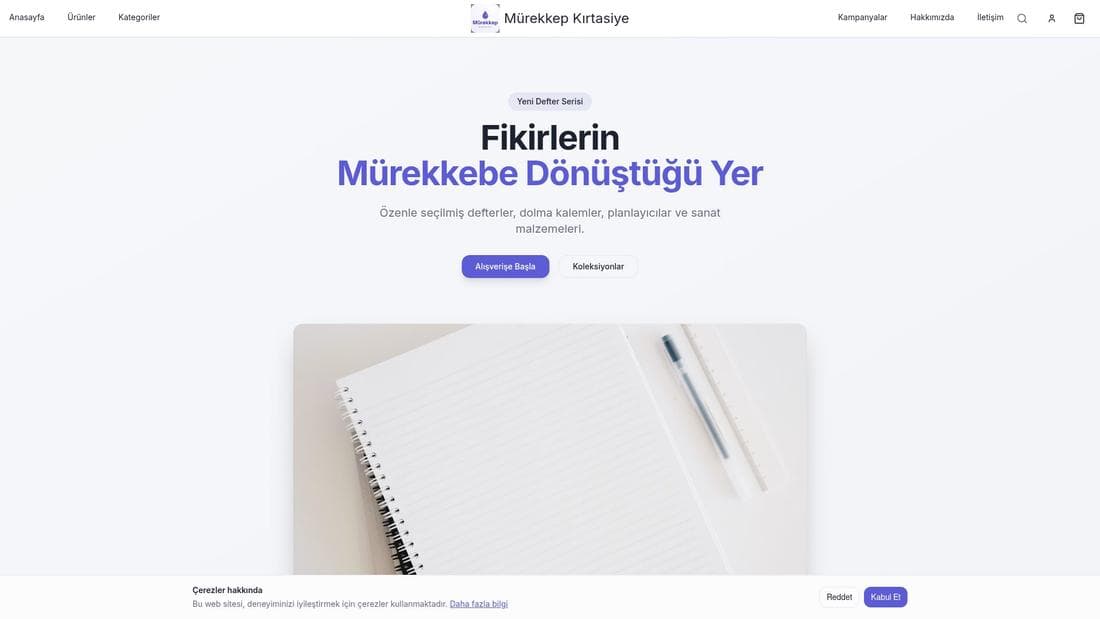
Real stores running this feature. Open one and click around.
Related guides
Using RFM customer segments
Read your RFM segments and behavioural groups under Müşteriler > Segmentler, refresh the scores, and send a chosen group an email or personal coupons.
Creating coupons and setting usage limits
Create percentage or fixed-amount discount coupons, set usage limits and date ranges, issue customer-specific codes, and announce them by SMS.
Adding products and managing variants
Create products, build colour and size variants, pick the main variant, manage stock and price — and why a product you added is not showing on the site.