
Publishing a job post and tracking applicants
Create a job posting under Kariyer, publish it on your site, collect applications, and move candidates through your hiring stages on the pipeline board.
The Career plugin moves hiring onto your store's own site: you publish the posting, candidates apply directly from your pages, and their CV and form answers land in the panel. The pipeline board walks candidates through stages you define, and each move can e-mail the candidate automatically. It suits any business with branches, seasonal hires or a standing vacancy — no job-board account required.
Before you start
- The Career plugin enabled
- An admin account that can open the Kariyer menu — and, if the Ekip ve Roller plugin is installed, Görüntüle and Yönet on the Kariyer section for your role
- Working store e-mail settings, so candidate notifications can be delivered
Steps
Screens are illustrative; the data in your own panel will differ.
Step 1: Set up your hiring stages and candidate e-mails
Kariyer → Ayarlar configures two things. 'Süreç aşamaları' already holds the six stages every new store is seeded with — Başvuru, Ön Eleme, Mülakat, Teklif, İşe Alındı, Reddedildi — which you rename, drag to reorder, or extend with Aşama ekle; each has a kind (active, hired, rejected) and an optional 'final stage' flag that ends the process. The four switches under Bildirimler decide which e-mails go out on their own. The consent text under 'Onay ve gizlilik' is shown to candidates on the public form — do not leave it empty.
Career settings
The stages candidates pass through — drag to reorder
Stage name Type Terminal stage (ends the pipeline) Başvuru Active No Ön Eleme Active No Mülakat Active No Teklif Active No İşe Alındı Hired Yes Reddedildi Rejected Yes açıkEmail admins when a new application arrives
açıkEmail candidates when their stage changes
Add stageSaveCareer settings — example view from the panel Step 2: Create a role-specific application form
Kariyer → Başvuru Formları holds reusable question sets you attach to postings. Press Yeni form, name it and add fields under Sorular. Name, e-mail and CV are already collected and are never asked twice, so put only role-specific questions here. Describe the role in the 'AI ile form oluştur' box and the questions are drafted for you. A posting with no form attached is published with the default form.
New application form
Form nameBarista applicationDescriptionUsed for branch floor hiresName, e-mail and CV are already collected and are not asked again.
Questions Type How many years of barista experience do you have? Short text Which shifts can you work? Multiple choice Do you hold a food hygiene certificate? Checkbox açıkActive
New application form — example view from the panel Step 3: Write the posting
Kariyer → İş İlanları → Yeni ilan has four sections. The basics carry the job title, department, location, employment type (full time, part time, contract, internship, temporary, freelance) and experience level; turn on 'Uzaktan pozisyon' for a remote role. The details section takes the job description, requirements, responsibilities and perks in Markdown. Under Ücret you enter a minimum and maximum salary and decide with 'Maaşı adaylara göster' whether it appears on the posting.
New posting
Job titleBaristaDepartmentBranch operationsLocationIstanbul, TürkiyeEmployment typeFull timeExperience levelMid levelkapalıRemote position
Minimum salary₺32,000kapalıShow salary to candidates
Off, the posting reads 'Salary hidden from candidates'.
New posting — example view from the panel Step 4: Publish the posting
The settings section picks the application form, sets a closing date and sets the status. While the posting stays a draft it does not appear on your site; Yayınla on the İş İlanları list moves it to published. A posting marked featured sits at the top of the list. When you stop taking candidates use Kapat, and Arşivle to retire it entirely — both can be undone with Yeniden aç.
Job postings
Title Department Location Type Applicants Status Barista Branch operations Istanbul, Türkiye Full time 34 Published Branch manager Branch operations Ankara, Türkiye Full time 11 Draft Courier Logistics Istanbul, Türkiye Part time 58 Closed PublishCloseArchiveJob postings — example view from the panel Step 5: Review the applications
Kariyer → Başvurular lists every candidate as a row: candidate, posting, stage, rating, status and application date. The filters at the top narrow to one posting, one stage or a minimum rating. Open a candidate to download the CV, read the cover letter and form answers, set a rating and add an internal note — notes are never shown to the candidate. 'Ask AI' summarises the candidate or drafts a reply.
Applications
Candidate Posting Stage Rating Status Applied Elif Yıldırım Barista Ön Eleme 4 Active 22.08.2026 Kenan Uz Barista Başvuru — Active 24.08.2026 Selin Akgün Courier Rejected 2 Rejected 19.08.2026 Download resumeAsk AIApplications — example view from the panel Step 6: Move candidates on the pipeline board and close them out
Kariyer → Süreç Panosu is the kanban view you drag candidates through; the posting filter at the top narrows it to one vacancy. Dropping a card into a new stage confirms with 'Candidate moved' and, if the setting is on, emails the candidate. Close a candidate out with 'Mark as hired' or Reject; the optional message you type on rejection is included in the e-mail that goes out.
Pipeline board
- ✓Applied
- 2Ön Eleme
- 3Mülakat
- 4Quote
- 5Hired
Elif Yıldırım
Rated 4Barista · 22.08.2026
Kenan Uz
ActiveBarista · 24.08.2026
Mark as hiredRejectPipeline board — example view from the panel
Tips
Adapt the six stages the plugin ships with
The board is never empty on day one: Başvuru, Ön Eleme, Mülakat, Teklif, İşe Alındı and Reddedildi are seeded when Career is enabled. Rename them to match your own process, drag to reorder, or add your own. Only if you delete all six does the board fall back to 'No stages configured. Add stages in Settings.' with nowhere to move an application to.
Deleting a posting deletes its applications
Deleting asks 'Delete this posting and all of its applications?' — say yes and every candidate who applied to it goes too. When a season ends, use Kapat or Arşivle instead: the application history and the ratings survive.
Frequently asked questions
- Where on my site does the posting appear?
- Published postings are listed on your store's own careers page and candidates apply straight from there. No separate site, domain or job-board account is involved.
- Who can see a candidate's CV?
- With the Ekip ve Roller plugin installed, only roles granted Görüntüle on the Kariyer section — a team member without it never sees the Kariyer menu at all. Without that plugin every administrator who can reach the panel sees the Kariyer menu and the applications screen, so restricting who reaches a CV needs Ekip ve Roller.
- Do I have to state the salary?
- No. You can fill in the minimum and maximum salary and leave 'Maaşı adaylara göster' off; the posting then reads 'Salary hidden from candidates' and the figures stay inside the panel.
Related plugins
The task in this guide ships with these plugins.
Try it in a live demo
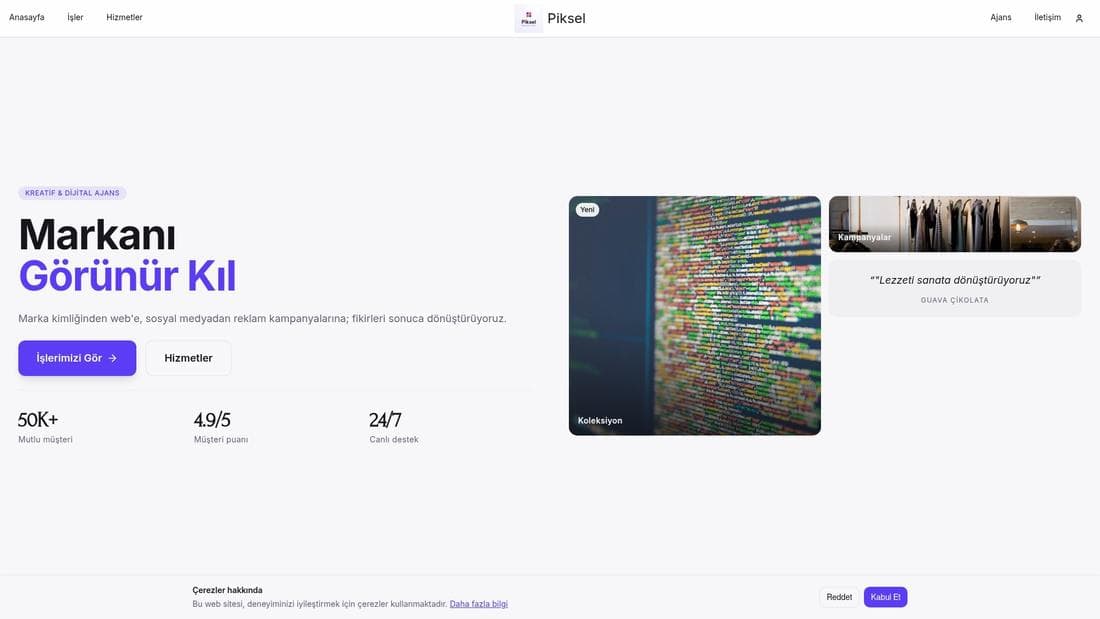
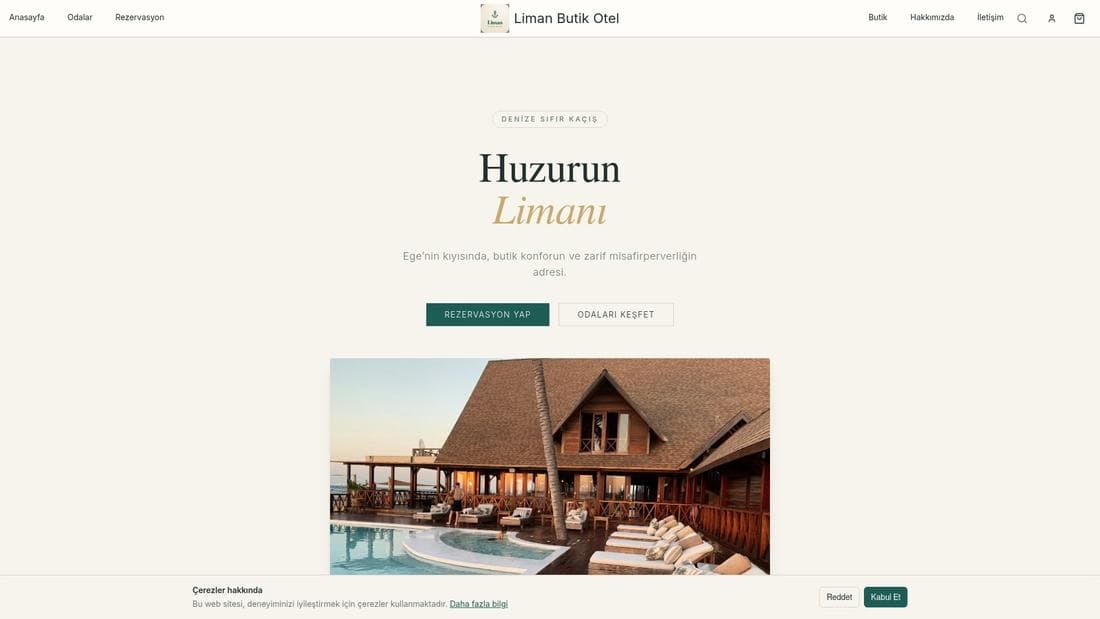
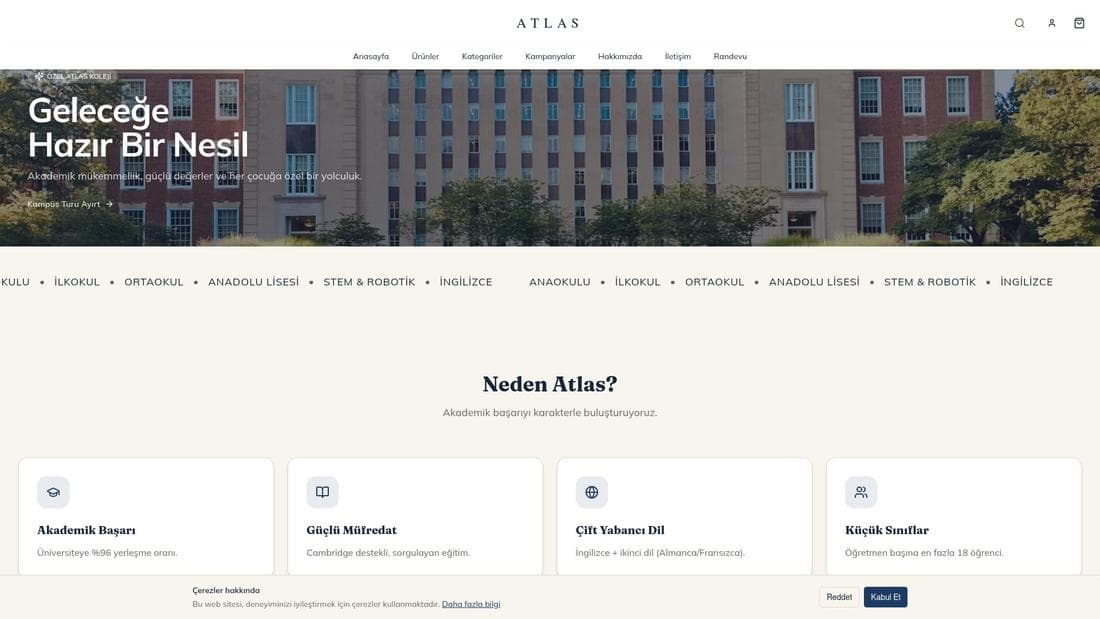
Real stores running this feature. Open one and click around.
Related guides
How to open a store: 6 steps to going live
Every step from signup to launch: sector, AI-generated design, your first product, payment and delivery setup, and connecting your domain.
Adding branches and per-branch stock
Define your physical shops under Şubeler, give each its own stock, opening hours and delivery areas, and move stock between branches.