
Creating and sending a payment link
Raise a one-off payment link for a single customer with your own amount and deadline, email it, and follow the collection from the panel.
A payment link is for money that never goes through a basket: a consulting fee, a deposit on a quote, a session charge. You set the title, the amount and the deadline in the panel; the customer clicks and pays by card. The link closes the moment it is paid, so the same amount cannot be collected twice. For service businesses — lawyers, accountants, agencies, physiotherapists — it is the shortest route to getting paid without inventing a product.
Before you start
- The payment-links plugin enabled for your store
- A working Iyzico payment integration
- The customer's email address, if you plan to email the link
Steps
Screens are illustrative; the data in your own panel will differ.
Step 1: Open the new-link screen
In the sidebar go to Ödeme Linkleri → Yeni Link. Tüm Linkler lists what you already have; with none yet it reads 'Henüz ödeme linki yok' and the Yeni Link button in the corner opens the same form.
Payment links
Create and track one-off payment links you can send to your customers.
Code Title Customer Amount Status Expires PL-K7M2QX4B Consulting fee E. Şahin ₺7,500.00 Paid 12.08.2026 PL-R9D4TN6C Project deposit B. Aydın ₺12,000.00 Active 05.09.2026 New LinkPayment links — example view from the panel Step 2: Enter the title, amount and description
The title is what the customer sees on the payment screen, so name the thing being paid for. The description is optional but it is where the scope goes, and it settles the argument that comes later. The form will not submit without an amount and a currency.
New payment link
Create a payment link and send it to your customer.
TitleMarch consulting retainerDescription3 sessions, 6 hours in total. Report included.Amount7,500CurrencyTRYNew payment link — example view from the panel Step 3: Pick the customer or type an email
Search an existing customer under 'Müşteri (mevcut)' and their email and phone fill themselves in. If they are not registered, type the address into 'Alıcı E-postası' — with no customer selected, that is where the link is sent. 'Dahili Not' is for your team only and is never shown to the customer.
Customer
Existing customerSearch customer...Recipient emaileda.sahin@ornekfirma.comUsed when no customer is selected.
Phone0532 000 00 00Internal noteContract signed 12.03.2026Customer — example view from the panel Step 4: Set a deadline and create the link
Leave 'Son Ödeme Tarihi' empty and the default validity from the settings screen applies. With 'Oluşturunca daveti e-posta ile gönder' left on, the invitation goes out as soon as the link is saved. Press 'Link Oluştur': you see 'Ödeme linki oluşturuldu', the address is copied to your clipboard and you land on the link's detail page.
New payment link
Expiry date05.09.2026açıkSend the invitation email on creation
Create linkNew payment link — example view from the panel Step 5: Share the link and follow the payment
On the detail page 'Kopyala' gives you the address to share over WhatsApp or SMS, and 'E-posta Gönder' resends the invitation. The address carries a random key unique to that link; the PL- code in the Kod column is the reference you search the panel by, not part of the URL. 'Bilgiler' holds the amount, status and dates; 'Ödeme Geçmişi' lists every payment attempt, and reads 'Henüz ödeme denemesi yok' until there is one. When payment lands the status becomes 'Ödendi'; 'Linki İptal Et' closes a link you no longer want paid.
PaidPayment link
https://bilancomusavirlik.com/pay/Vb3nQ7xK9pR2sT5uW8yZ1aC4dF6gH0jLStatus Payer Amount Payment ID Date Paid E. Şahin ₺7,500.00 24188432 14.08.2026 CopySend emailCancel linkPayment link — example view from the panel Step 6: Set your defaults once
Under Ödeme Linkleri → Ayarlar set the default validity in days and the default currency; every new link is proposed with them. The two notification switches decide whether the customer and your own admins are emailed when a payment arrives. Finish with 'Kaydet'.
Payment link settings
açıkEmail the customer when a payment is received
açıkEmail store admins when a payment is received
kapalıAuto-generate an invoice when a payment is received
Better left off; create invoices by hand from the link detail.
Default validity (days)14SavePayment link settings — example view from the panel
Tips
Leave automatic invoicing off
The auto-invoice switch is off by default and the panel itself recommends keeping it that way: an invoice cut the instant payment lands becomes a document you cannot take back if the work is later cancelled or refunded. Raise it from the link detail once you know the job is done.
Cancelling is final, expiring is not
The panel warns plainly before you cancel: the action cannot be undone and the link can never be paid. An expired link merely moves to 'Süresi Doldu' — if the customer still wants to pay, issuing a fresh link with the same details is the cleanest route.
Frequently asked questions
- Can the same link be paid twice?
- No. The moment a payment completes the link flips to 'Ödendi' and closes; a second attempt is refused. To collect again from the same customer you create a new link.
- The customer never got the email — what now?
- Use 'E-posta Gönder' on the link detail to resend the invitation. If it is urgent, 'Kopyala' and share the address over WhatsApp or SMS instead; the link works wherever it is opened from.
- How is the invoice produced?
- With 'Fatura Oluştur' on the link detail. An invoice can only be produced for a link that has been paid; once ready, 'Faturayı İndir' gives you the PDF.
Related plugins
The task in this guide ships with these plugins.
Try it in a live demo
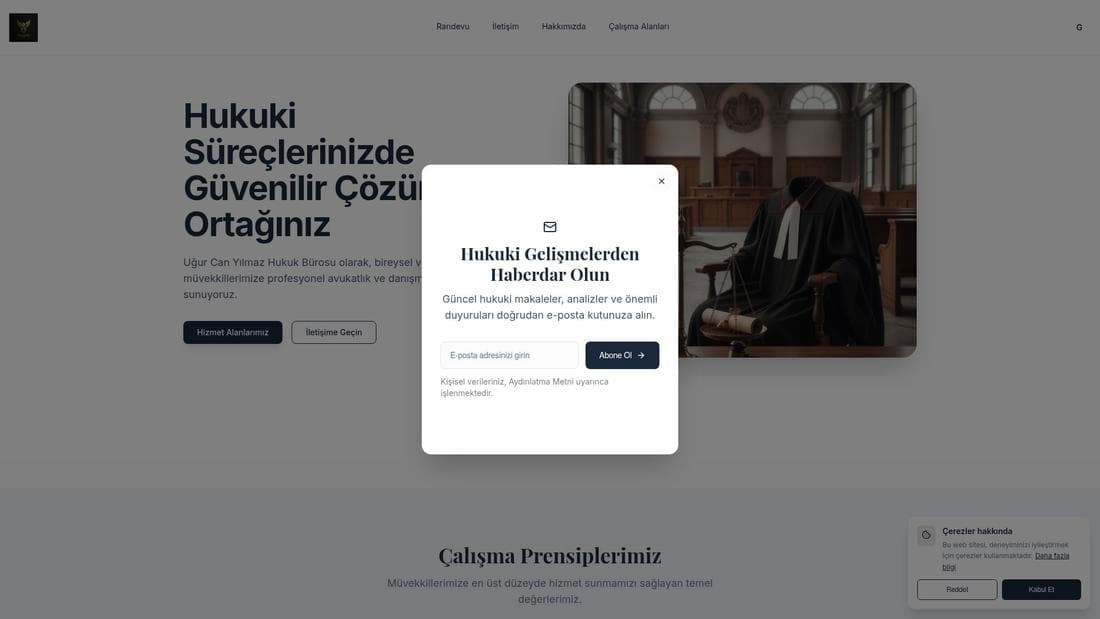
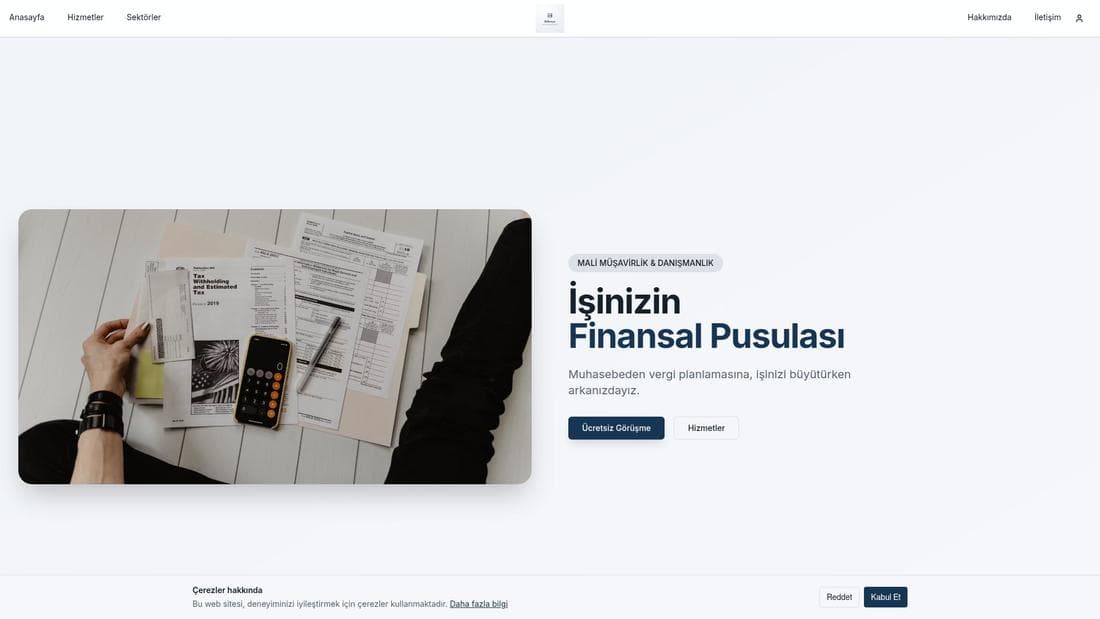
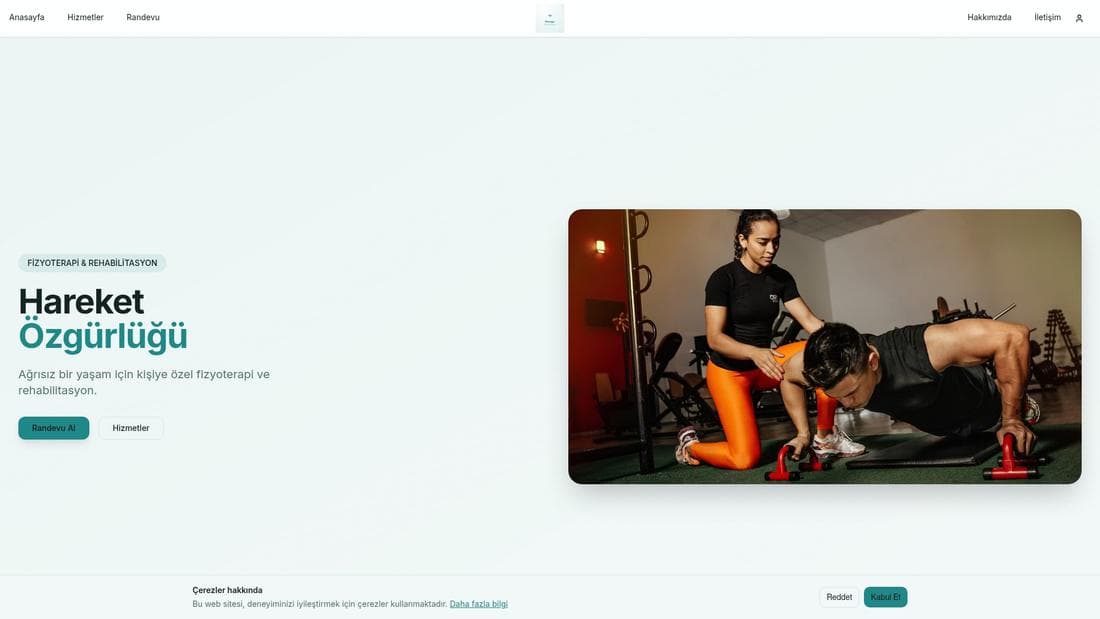
Real stores running this feature. Open one and click around.
Related guides
Start taking card payments with iyzico
Connect your iyzico account, configure 3D Secure and instalments, test end to end, and switch to live card payments.
E-invoice integration setup
Connect Uyumsoft, Paraşüt, Sovos, BirFatura, Bizimhesap or Mikro so e-invoice and e-archive documents are issued for your orders automatically.