
Setting up Virtual Try-On for products
Turn Virtual Try-On on per product, add reference images to variants, test it in Önizleme Stüdyosu and set the per-customer daily limit.
Virtual Try-On lets a signed-in customer upload their own photo and see your product on themselves — the closest thing an online store has to a fitting room. It is used to remove fit hesitation on clothing, footwear, eyewear and jewellery. It is switched on per product rather than store-wide, and depends on each variant having at least one reference image; on a variant with no image, try-on silently does nothing.
Before you start
- The Try-On plugin enabled — the Sanal Deneme heading appears in the menu
- Clear, front-facing reference images on the variants you want to enable
- Enough AI credit — every successful try-on is billed to the balance
Steps
Screens are illustrative; the data in your own panel will differ.
Step 1: Read the current picture on Genel Bakış
Sanal Deneme > Genel Bakış shows the Toplam deneme, Deneme (30 gün), Harcama (30 gün) and Müşteri (30 gün) counters, a Son 14 gün chart and an En çok denenen ürünler list. Before anyone has tried anything it reads Henüz deneme kaydı yok. The cards at the bottom lead to Varyant Analitiği, Ürünler ve Bağlama, Önizleme Stüdyosu, Ayarlar and Nasıl çalışır.
Virtual Try-On
Total runs
1,284
Runs (30 days)
317
Spend (30 days)
₺486.20
Customers (30 days)
142
Last 14 days — runs per day
Virtual Try-On — example view from the panel Step 2: Turn try-on on per product
Sanal Deneme > Ürünler ve Bağlama lists every product with Ürün, Deneme and Varyant hazırlığı columns. Flip the switch on a row and you get a Deneme açıldı toast. The Tümü, Açık olanlar and Görsel gerekli filters narrow the list — Görsel gerekli on its own gathers the products that are switched on but will never run, because a variant has no image.
Products and variant readiness
AllEnabledNeeds imagesProduct Try-On Variant readiness Runs Linen Shirt — White On 4/4 variants ready 86 runs Oversize Trench Coat On 2/3 variants ready 31 runs Leather Boot — Black Off 3/3 variants ready 0 runs For try-on to work, a variant needs at least one reference image.
Products and variant readiness — example view from the panel Step 3: Fill in the missing variant images
Where Varyant hazırlığı is not complete, open the product under Ürünler > Tüm Ürünler and add an image to the variant that is short. The panel flags this as Bu varyantın referans görseli yok — deneme için en az bir görsel ekle. For the best results leave one clear, front-facing, plain-background image per colour or variant.
Virtual Try-On (AI)
açıkTry-On enabled
Signed-in customers can try this product on themselves with AI
This variant has no reference image — add at least one for try-on.
Every run is billed to your store's AI balance
Virtual Try-On (AI) — example view from the panel Step 4: Test it yourself in Önizleme Stüdyosu
Before going live, open Sanal Deneme > Önizleme Stüdyosu, press Bir varyant seç, upload a frame with Model fotoğrafı yükle and press Önizleme oluştur. The screen shows Model fotoğrafı on the left and Deneme sonucu on the right, and İndir saves the result. The Bu oturum gallery is not persistent: previews are never stored and vanish when you leave the page. The photo must be a JPG, PNG or WebP under 8 MB.
Preview studio
Choose a variantLinen Shirt — White / MUpload a model photoChoose a model photoPick a JPG, PNG or WebP image under 8 MB.
Generate previewDownloadPreviews are never stored — they vanish when you leave this page.
Preview studio — example view from the panel Step 5: Set the daily usage limit
The Deneme Ayarları screen under Sanal Deneme > Ayarlar carries Kullanıcı başına günlük deneme limiti. It is a store-wide setting that exists to stop abuse; entering 0 makes it unlimited. The same page shows a Denemesi açık ürünler counter and the Ücretlendirme nasıl işler explainer — every successful run is deducted from the store's AI credit balance.
Try-on settings
Daily try-on limit per customer5Each customer may try each product this many times per day (one store-wide setting applied to all products). Guards against abuse. 0 = unlimited.
Products with try-on on24Manage these from the products page.
How billing works — every successful run is deducted from the store's AI credit balance.
SaveTry-on settings — example view from the panel Step 6: See what is working in Varyant Analitiği
Sanal Deneme > Varyant Analitiği reports Deneme sayısı, Denenen varyant, AI harcaması and En çok denenen over Son 30 gün, Son 90 gün or Tüm zamanlar. The table carries Varyant, Deneme, Pay, Müşteri, Harcama and Son deneme. A variant tried often but rarely bought usually points at a sizing or imagery problem; a variant never tried at all usually means that product is simply switched off.
Last 30 daysVariant analytics
Variant Runs Share Customers Spend Last run Linen Shirt — White / M 86 27% 54 ₺132.40 12.02.2026 Oversize Trench — Beige / L 43 14% 29 ₺66.20 11.02.2026 Linen Shirt — Navy / S 18 6% 15 ₺27.70 09.02.2026 Variant analytics — example view from the panel Step 7: Turn on live camera try-on where it fits
For lipstick, eyeshadow, blush, earrings, glasses and hats, the product form's Canlı Deneme (Kamera) section applies. Choose a Deneme türü and set Renk, Yoğunluk and Boyut where relevant; for jewellery and eyewear, Ürün görseli (şeffaf PNG) needs a transparent PNG containing only the product itself — a normal product photo will not work here. Live try-on runs on the customer's own device, is completely free and is not deducted from your AI balance.
Live try-on (camera)
açıkLive try-on on
Customers can try the product in real time using their camera
Try-on typeGlassesProduct image (transparent PNG)glasses-frame.pngUpload a transparent PNG containing only the product itself.
Live try-on runs on the customer's device — completely free, never billed to your AI balance.
Live try-on (camera) — example view from the panel
Tips
Start with your best sellers
Enabling the whole catalogue at once takes half-prepared variants live and spoils the first impression. Switch on a handful of best sellers, read the real usage in Varyant Analitiği, then widen — which also keeps spend predictable.
Try-on only works for signed-in customers
Whoever sees try-on on the product page must be signed in; a guest visitor never gets past that step. If a product looks enabled and its variants look ready but no runs are recorded, sign out and open the product page as a guest first — that is usually the answer.
Frequently asked questions
- Are the photos customers upload stored?
- No. Photos and generated images are never saved — only anonymous usage counts are kept. The Deneme, Müşteri and Harcama figures you see in the panel are those counts, not imagery.
- What does try-on cost me?
- Every successful run is deducted from your store's AI credit balance; you see the spend as Harcama (30 gün) on Genel Bakış and as AI harcaması in Varyant Analitiği. To cap it, use Kullanıcı başına günlük deneme limiti in Deneme Ayarları, or connect your own Gemini key under AI Ayarları and pay the provider directly.
- I enabled the product but customers see no try-on.
- Check three things in order: whether the product has fallen into the Görsel gerekli filter on Ürünler ve Bağlama, whether its variants have reference images, and whether the customer is signed in. Try-on needs at least one reference image on a variant to run at all.
Related plugins
The task in this guide ships with these plugins.
Try it in a live demo
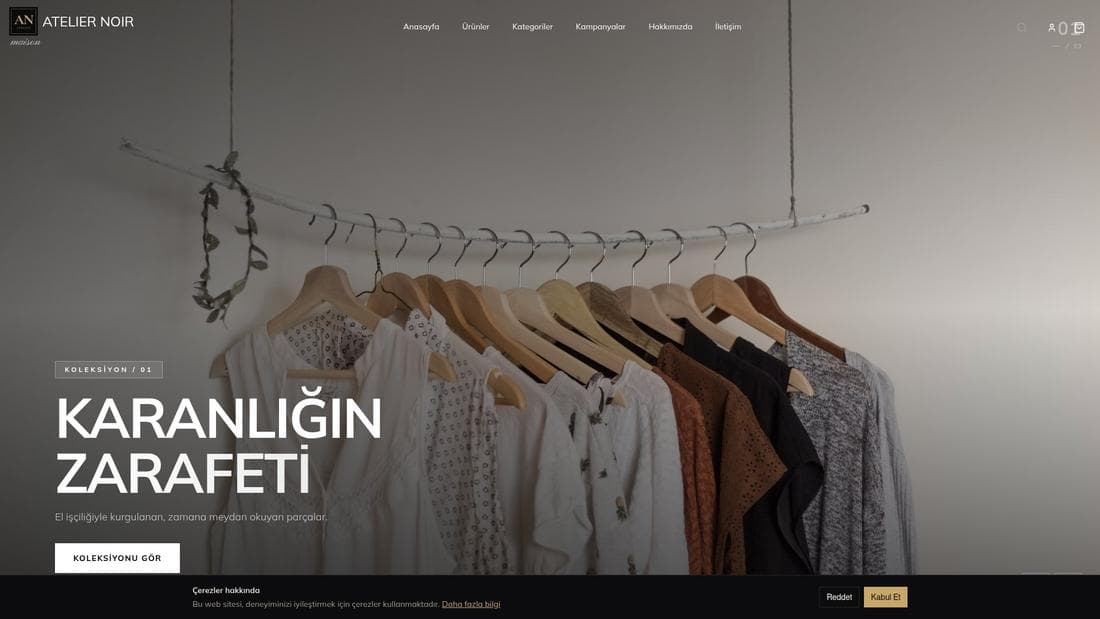
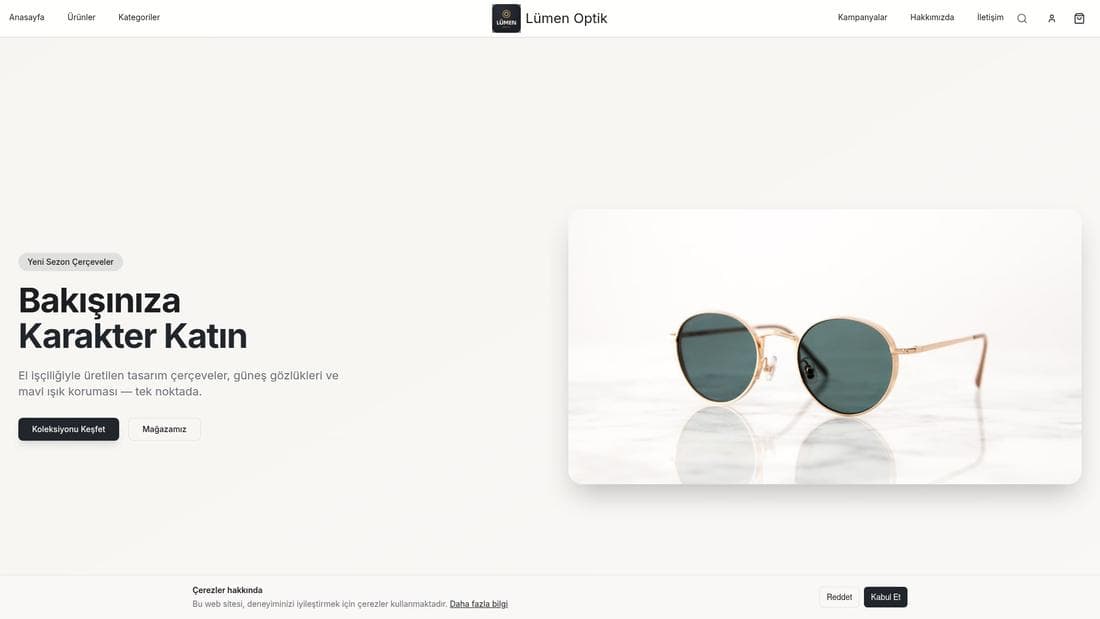
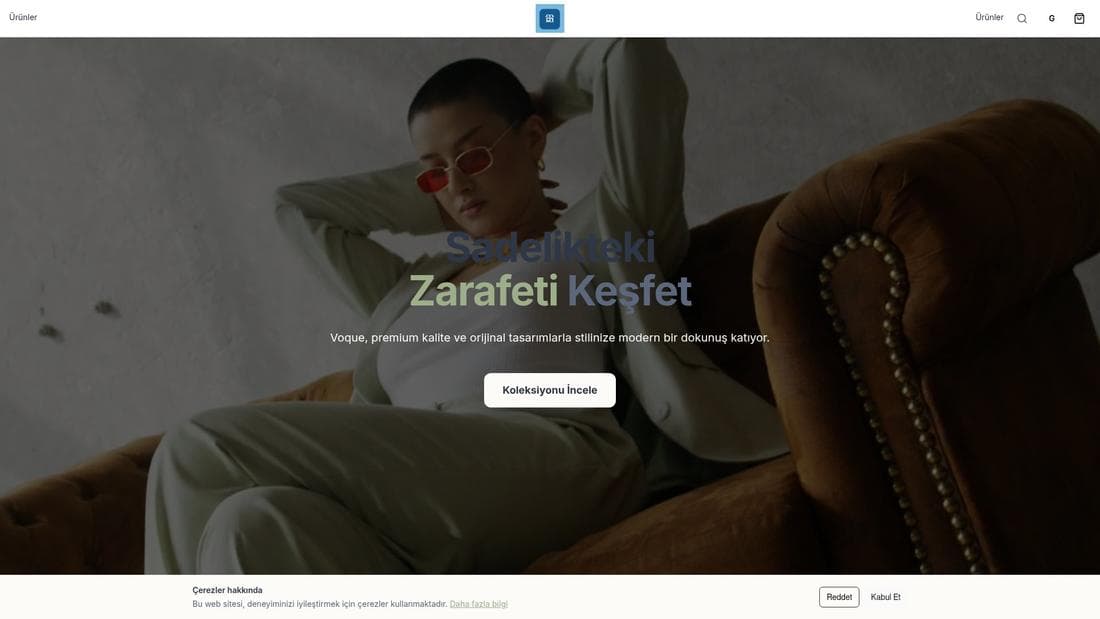
Real stores running this feature. Open one and click around.
Related guides
Generating AI content and using credits
Connect your AI provider, generate text and images inside the panel, find every generation on the AI İçerik page and manage your AI credit balance.
Adding products and managing variants
Create products, build colour and size variants, pick the main variant, manage stock and price — and why a product you added is not showing on the site.