
Setting up the Shopier integration
Connect your Shopier account with an access token or OAuth, set the write permission, pair and publish products, fulfil orders and import the catalogue.
The Shopier integration brings your Shopier products, orders, refunds and payouts into your own admin, and lets you publish your variants to Shopier and push price and stock. The critical part of the setup is not the connection but the write permission: this app changes nothing in your Shopier store until you explicitly allow it. This guide covers the path from connecting to your first fulfilled order.
Before you start
- The Shopier Pazaryeri plugin enabled on your plan
- A personal access token (PAT) from your Shopier account, or permission to connect via OAuth
- The Shopier Aktarma plugin as well if you plan to import the catalogue
Steps
Screens are illustrative; the data in your own panel will differ.
Step 1: Choose an auth method and connect
On Pazaryerleri → Shopier → Ayarlar, the Bağlantı Durumu card offers 'Erişim Anahtarı (PAT)' or 'OAuth 2.0' as the Kimlik doğrulama yöntemi. For PAT, paste the token into Erişim anahtarı and press 'Anahtar ile Bağlan'. For OAuth, press 'OAuth ile bağlan' and approve on Shopier's screen; you come back to 'Shopier hesabı başarıyla bağlandı.'
Not connectedConnection status
Authentication methodAccess token (PAT)Access tokenEnter your Shopier access tokenA PAT has no permission picker — Shopier grants the token full account access.
Connect with tokenConnect with OAuthConnection status — example view from the panel Step 2: Verify the connection
Once connected the card shows Mağaza ID, Mağaza adı and Son doğrulama. The 'Bağlantıyı doğrula' button tests the token against the live API and reports 'Bağlantı doğrulandı'. The last-error field is sticky: fixing a problem on Shopier's side does not clear the message on its own — only a successful verification does.
ConnectedConnection status
Shop ID184920Shop nameVoque ButikLast verified30.08.2026 10:41Verify connectionDelete keyFixed the problem? Press 'Bağlantıyı doğrula' — this message clears only on a successful check.
Connection status — example view from the panel Step 3: Turn on writes deliberately
The first row of Senkronizasyon Ayarları is 'Shopier mağazamda değişiklik yapılmasına izin ver'. While it is off the app can change nothing in your Shopier store — no publishing, no price/stock push, no fulfilment, no refunds. Orders and products still keep coming in, so you see everything in the panel while nothing touches Shopier.
ConnectedSync settings
kapalıAllow changes to my Shopier store
While off: no publishing, no price/stock push, no fulfilment, no refunds.
açıkOrder sync
Import Shopier orders automatically
Default dispatch time (days)2Days needed to hand an order to the carrier (1-3)
Shipping payerBuyer paysOrders sync every 5 minutes, refunds and the catalogue hourly, finance once a day.
Sync settings — example view from the panel Step 4: Check the webhook status
The Webhook Durumu card on the same page reads Kayıtlı or Eksik and shows the callback address. If it says Eksik, press 'Webhook'ları yeniden oluştur' and wait for 'Webhook'lar yeniden oluşturuldu'. The webhook is what makes order and refund changes arrive without waiting for the 5-minute poll.
RegisteredWebhook status
Callback URLhttps://api.magazamhazir.com/shopier-marketplace/webhookCopyRecreate webhooksWebhook status — example view from the panel Step 5: Pair products, or publish them to Shopier
The Ürünler page has two tabs. On Pazaryeri kataloğu you pull Shopier's products with Senkronize et, link them with Otomatik eşleştir and Akıllı eşleştir, or create new store products with İçeri aktar. On Mağazamdaki ürünler, Yayınla creates the selected variant as a new product in Shopier. 'Bağlantıyı kaldır' removes only the local link — it never touches the Shopier product.
ConnectedProducts
Marketplace catalogueMy productsProducts Merchant SKU Listing ID Marketplace state Paired Linen Shirt — Ecru / M GML-EKR-M 8421907 Live Paired Linen Shirt — Ecru / L GML-EKR-L — — Not paired Wool Scarf — Anthracite KSK-ANT — — Not paired PublishUnlinkThis variant will be created as a new product in your Shopier store.
Products — example view from the panel Step 6: Fulfil an order
Open an order from Siparişler and press 'Siparişi Kargola'. At least one of Kargo firması, Takip numarası and Kargo kodu must be filled — leave them all empty and you get 'Lütfen en az bir kargo bilgisi girin'. On save you see 'Sipariş kargolandı ve Shopier'e bildirildi' and the fulfilment status becomes Kargolandı.
ConnectedFulfil order
CarrierYurtiçi KargoTracking number7412093855Shipping codeThis action changes real records in your Shopier account.
ConfirmFulfil order — example view from the panel Step 7: Import the catalogue from Shopier
To bring Shopier's products into your store in bulk, open İçe Aktarma → Shopier and press 'İçe Aktarmayı Başlat'. The job syncs categories, fetches products, processes them and downloads images. At the end you get counts for İçe Aktarılan Ürünler, Güncellenen Ürünler and Atlanan Ürünler; failed rows are listed under İçe Aktarma Hataları.
Shopier import
Import complete
Imported products
42
Updated products
7
Skipped products
3
Start importShopier import — example view from the panel
Tips
An empty product list is usually not your token
Shopier keeps the Products API closed for some accounts. If orders, refunds, categories and payouts all arrive on the same token but the product list stays empty, that is not a missing permission and it cannot be fixed here. Email hello@shopier.com with your shop ID and ask them to open products API access.
Deleting the token is not the same as disconnecting
'Anahtarı Sil' removes the stored token from this store entirely and, if you connected via OAuth, revokes it on Shopier's side too, clearing the shop details and import state. A PAT itself can only be fully revoked from your own Shopier account (Hesabım → Personal Access Token).
Frequently asked questions
- Can I delete a Shopier product from here?
- Deleting is a separate and irreversible action: Shopier has no undo, and a deleted product goes for good along with its URL, its reviews and its place in your storefront. If you only want to break the link, use 'Bağlantıyı kaldır' — that changes nothing on Shopier.
- How often does synchronisation run?
- Orders every 5 minutes, refunds and the product catalogue hourly, finance once a day. If you do not want to wait, the Senkronize et button on the relevant page triggers it by hand.
- Where do I see the money Shopier owes me?
- On the Hakedişler page. The Kazanç summary at the top gives Brüt satış, Pazaryeri kesintileri, Net kazanç and Bankaya ödenen for the period, and the table below lists each payout with Tarih, Tutar and Durum. Shopier reports settlements as payouts that left for your bank, not as individual movements.
Related plugins
The task in this guide ships with these plugins.
Try it in a live demo
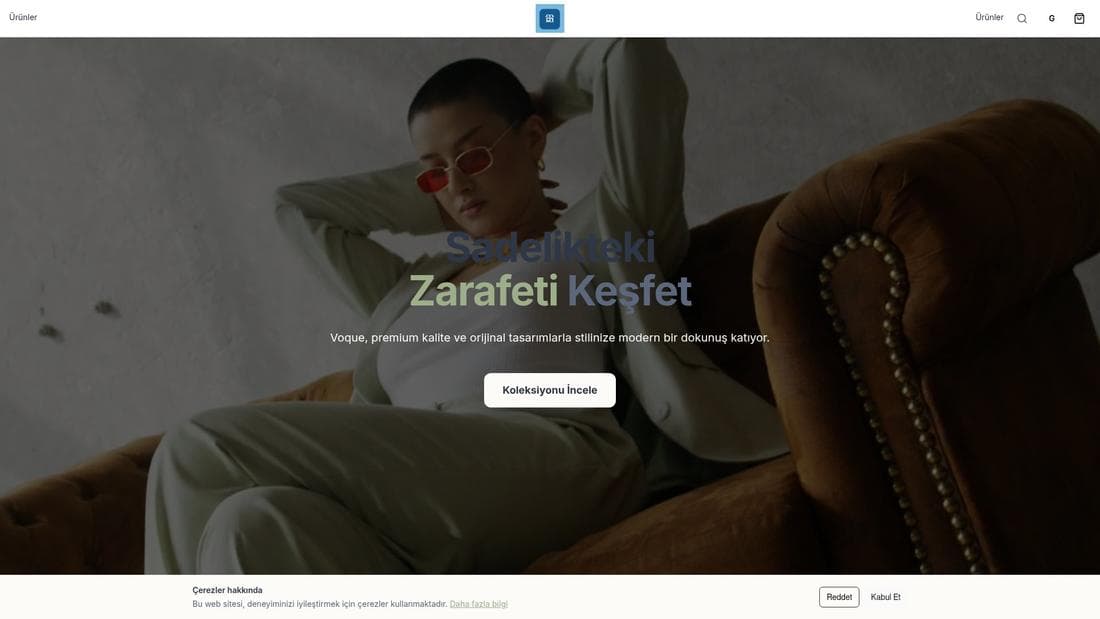
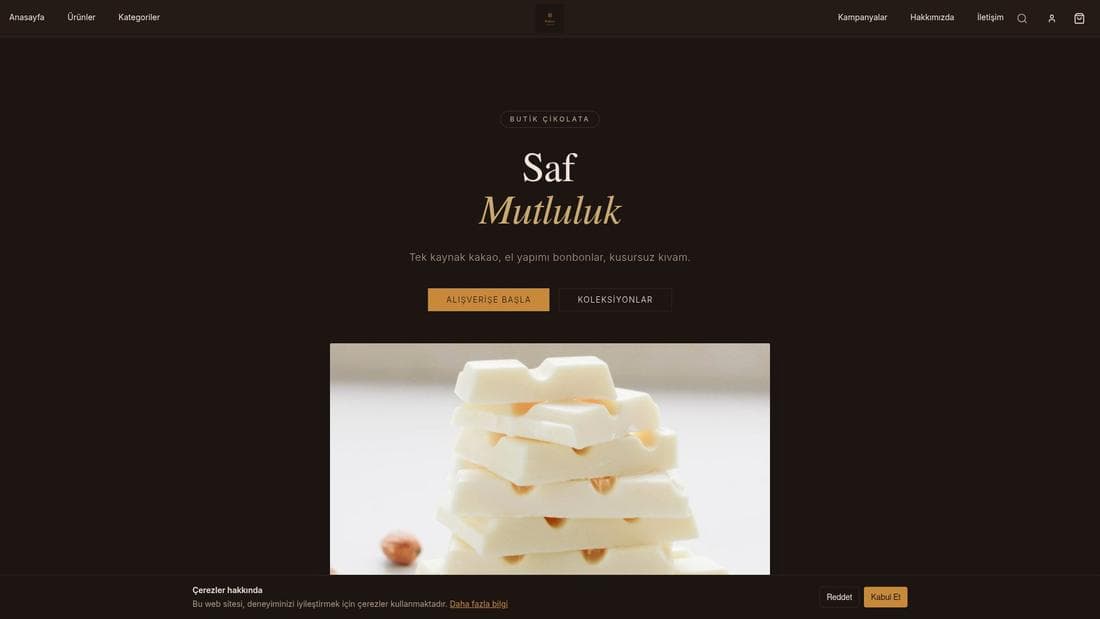
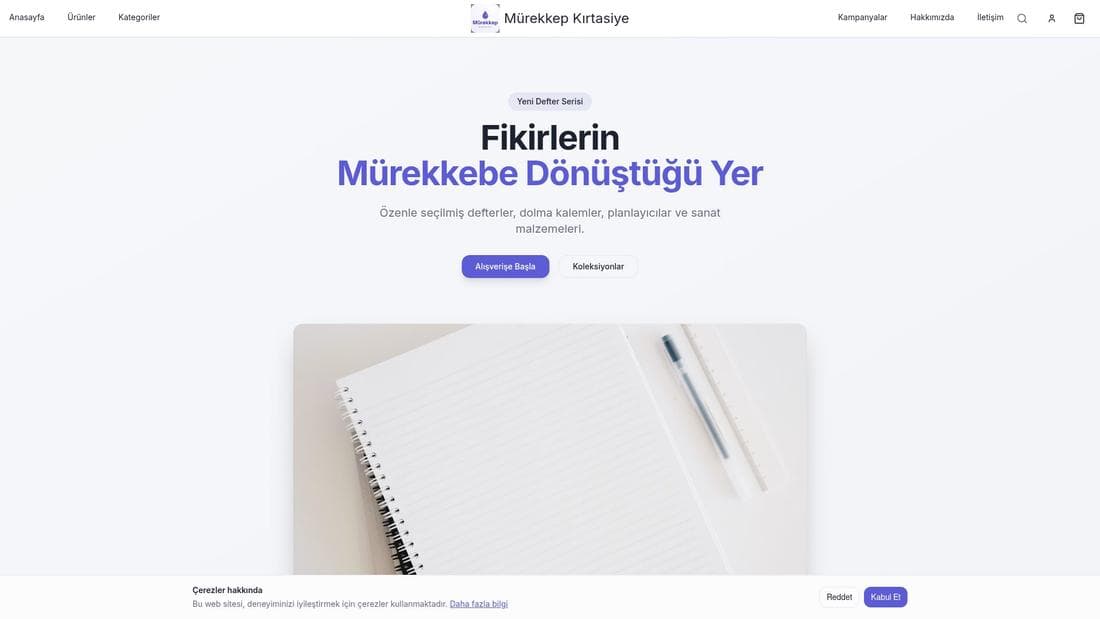
Real stores running this feature. Open one and click around.
Related guides
Setting up the Hepsiburada integration
Create a service key in your Hepsiburada seller panel, connect with your merchant ID and service key, pair listings to products, run orders from one panel.
Trendyol marketplace integration setup
Connect your Trendyol seller account, map the catalogue, manage orders and claims from one panel, and verify webhook status.