
How to apply a ready-made theme
Preview ready-made designs live with your own products, try them on desktop and mobile, and choose whether to apply one page or the whole theme.
The Theme Store lets you apply a finished look to your store without designing one. Its best feature is that the preview runs on your real products rather than placeholder content — you see how a theme sits on your own catalogue before applying it. Nothing is saved while you preview; the change happens only when you apply.
Before you start
- An account with access to the page editor
- A few products in your store — the preview uses your real data
- A thought about your current design, if you plan to apply a theme store-wide
Steps
Screens are illustrative; the data in your own panel will differ.
Step 1: Open the Theme Store
Open the editor from Content > Pages and go into the Theme Store. The gallery is built for previewing ready-made designs live with your own data. The theme you are currently on carries a Live badge, so you never lose track of which one you are using.
LiveTheme Store
Preview ready-made designs live with your own data
Search themes...fashionAtelier Noir
LiveFashion & Apparel
Botanica
LiveBeauty & Care
Theme Store — example view from the panel Step 2: Narrow by category
The gallery groups themes by sector: Fashion & Apparel, Beauty & Care, Food & Drink, Electronics, Home & Living, Jewelry & Accessories, Services & Booking, Health, Sports & Outdoor and more. You can also search by name. If nothing matches, the panel suggests adjusting your search or category.
Theme Store
AllFashion & ApparelFood & DrinkServices & BookingPortfolioNo themes found.
Try adjusting your search or category.
Theme Store — example view from the panel Step 3: Preview it with your own data
Click Preview on a theme. It opens with your store's real data and states at the top that nothing is saved yet. You can move between the Home, Products, Product Detail, About and Contact pages, and switch between Desktop, Tablet and Mobile. Open in new tab gives you a full-screen look.
Preview
Previewing with your store's real data — nothing saved yet
HomeProductsProduct DetailAboutContactDesktopTabletMobileOpen in new tabBack to galleryPreview — example view from the panel Step 4: Choose the scope: one page or the whole theme
When you click Use This Theme the panel asks how it should be applied. Use for current page changes only the page you have open — every other page stays as it is. Import full theme moves your whole store onto the new design. If you are unsure, try one page first.
How should Atelier Noir be applied?
Use for current page
Only the open page changes
Import full theme
The whole store moves to the new design
ApplyCancelHow should Atelier Noir be applied? — example view from the panel Step 5: Confirm the result
When it finishes, the panel says the theme was imported successfully, and says so plainly if something went wrong instead. You are left in the editor afterwards, so you can carry straight on adjusting sections and content for your own store — a theme is a starting point, not a final state.
Theme Store
Theme imported successfully.
Failed to import theme.
Back to galleryTheme Store — example view from the panel
Tips
Always preview on mobile
Most of your visitors arrive on a phone, but theme choices get made on a desktop. Browse every theme you like in Mobile before applying; a layout that feels spacious on a desktop can be cramped on a phone.
Look at Product Detail first
Most themes look good on the home page. The real difference shows on the Product Detail page — that is where selling happens. Switch to it in the preview and see how it holds your own product's images and variants.
Applying to one page is the safe experiment
Use for current page is how you try a theme on your real store without risk. If you like it, import the full theme; if not, you only have one page to put back.
Frequently asked questions
- Does previewing change my store?
- No. The preview uses your real data but nothing is saved — the panel states that above the preview. A change only happens when you click Apply and choose a scope.
- If I import the full theme, do I lose my products?
- No. A theme is design: page layouts, sections and styles. Your products, categories, orders and customers are independent of the theme and are not touched.
- The preview will not open
- The panel says preview is currently unavailable. This is usually temporary; go Back to gallery and try again. If a card has no preview image, the panel notes that separately too.
- I do not like the theme I applied — can I go back?
- You can apply a different theme from the gallery. If you only tried one page, restoring that page in the editor is enough — which is exactly why trying an uncertain theme with Use for current page is more comfortable.
Related plugins
The task in this guide ships with these plugins.
Try it in a live demo
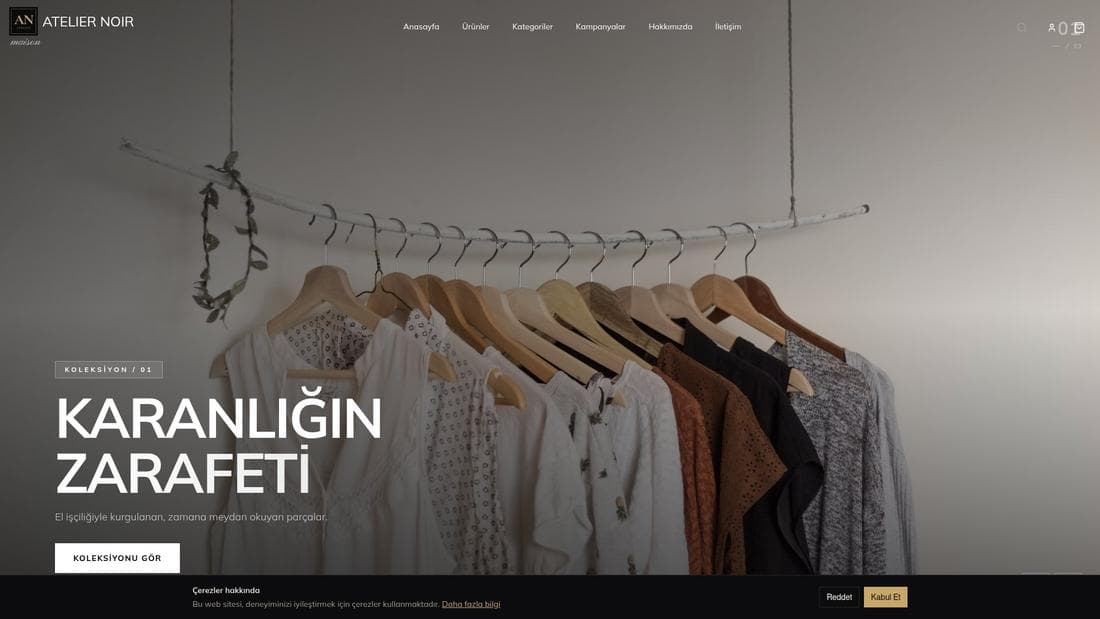
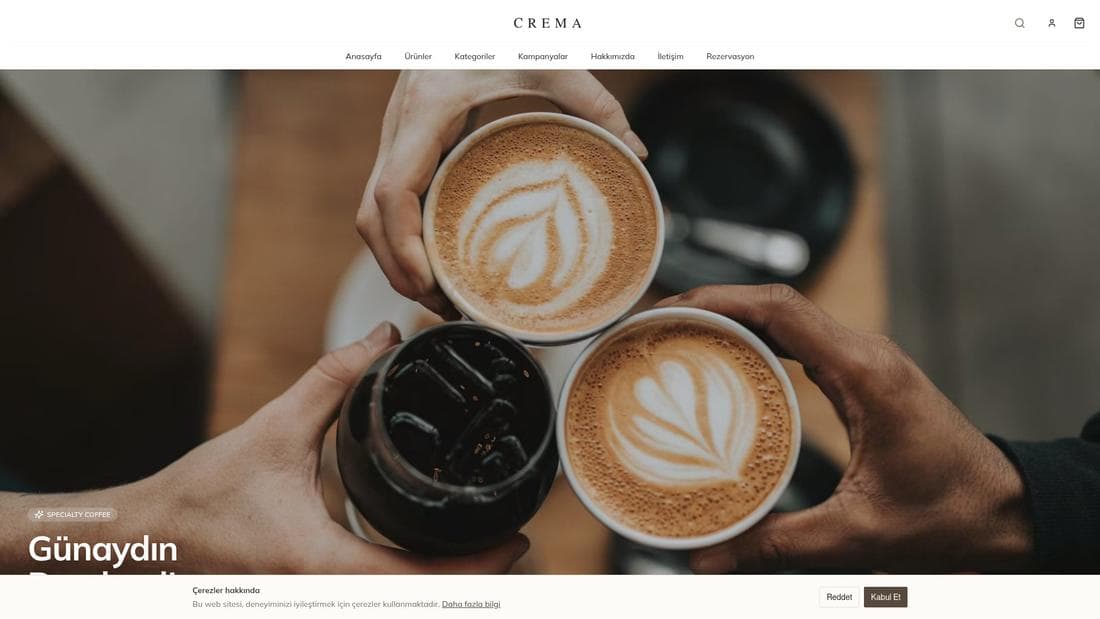
Real stores running this feature. Open one and click around.

Related guides
Using the visual page editor
Edit your store pages in the visual editor: add sections, pick a variant and style, tune the mobile layer, then save the draft and publish it.
Creating a personalization audience
Define audiences from visitor, device, UTM and time conditions, then show, hide or swap any page-builder section for exactly those visitors.
How to open a store: 6 steps to going live
Every step from signup to launch: sector, AI-generated design, your first product, payment and delivery setup, and connecting your domain.